[FF8PC-Steam] Batch extraction of backgrounds

  • Thread starter Thread starter SaintBahamut
  • Start date Start date
Status
Not open for further replies.
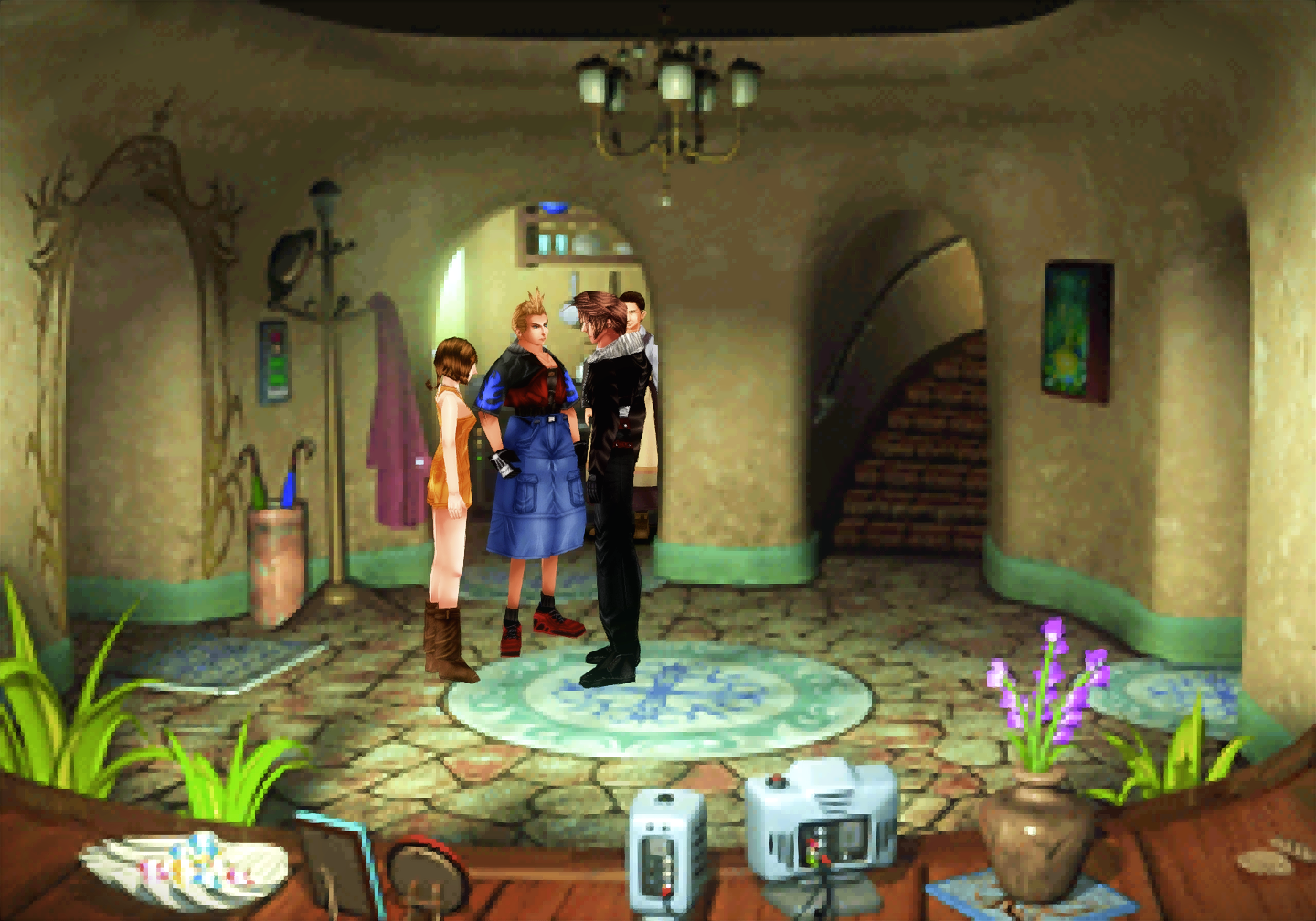
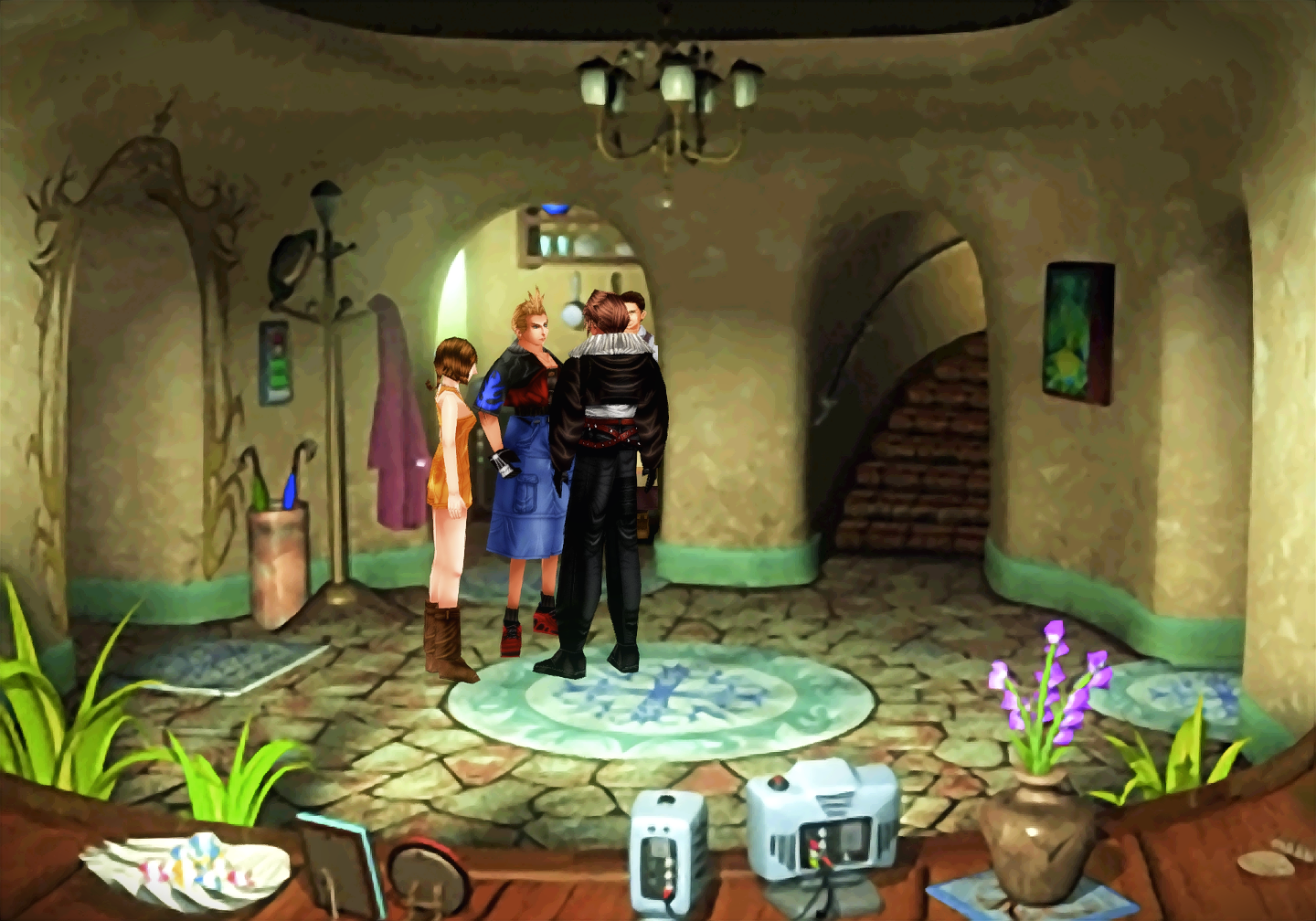
For anyone who may actually be interested, which may be no one since no one seems to be showing any real interest, but figured I'd post this as an update regardless. I have been continuing my efforts, albeit somewhat slower on developing a mass process for filtering these images for what I consider to be an improved HD quality over WAIFU2 filtering. I still have plenty of images to export from the original data files using Unmass/Pupu, however I have begun developing a filter for automatically processing all the images. I still have to look into turning my filter into a process for mass batch processing, but have certainly made some headway so far and expect the base filter to be done shortly after the holidays. My current filter only requires a few more steps to be completed before adopting it to a mass process and ready to apply on all the images once I've determined which images need to be made, which I'll likely just use the AngelWing mod as a base to start with. Below are two images, the original image from the game at 4x it's original size without any modifications, and the second is my current expectations for my current filtering once it is completed. I have removed a lot of the filtering I was applying previously in hopes of removing some of the line art that was appearing, I think it looks better, but might alter the process again before finally doing a mass filter job. I certainly prefer this one over the last, but feel some of the detail may be missing that could be applied.

Original
C1XNAGQ.png


Current Automatic Filtering Process
vWinmVj.png


Up until this post, all the editing I've done has been manual, but this process is automatic and therefore can be easily applied to thousands of images requiring only the time needed for my system to process these images for them to be completed once they are collected and the filter I'm making is completed.
 
Last edited:
I want to use ESRGAN with the manga109 dataset, I've downloaded all the programs needed but have no idea how to run it, a tutorial would be nice
 
Considering I've only setup ESRGAN once myself and the fact that I'm hardly a Python expert, I'm far from the person to explain/make a tutorial on how to get it working. In fact, despite the fact that the filter I'm making right now for these images is being made with Python, I've never actually used it before now so I honestly have very little to offer on the subject. What I can tell you though from what I noticed while setting it up for myself, is that it was rather confusing and which version of Python you have installed will drastically alter how you install the necessary libraries for it and which commands/methods you use to install them to get ESRGAN working to begin with. Initially I tried to install it using Python 3.7 and ran into many issues trying with that version. I'm sure someone more familiar with Python can easily explain how to install it properly with that, but for me it was difficult and gave up quickly.

In the end I used 2.7. There were three libraries I needed to install, but can't remember which exactly, but they'll easily come up as you google on how to install each library. Begin with the instructions on the ESRGAN page and from there it will make sense. I used what I believed to be package/library manager for lack for a better description called Pip. Using that, I installed all the libraries necessary to use ESRGAN. While googling on how to install each library for Python 2.7 and using Pip, you should come across some pip commands that you run from the command line that automatically downloads and installs them. I used the same process to install all three libraries, just with slightly different commands referring to each library. Once they were all installed, I simply ran ESRGAN as explained on the developer's page.

Wish I could help you more than that, but that's the general 'how to' on how I installed it myself, hope that helps and hopefully I didn't leave anything out.
 
Last edited:
Final stages of designing that filter was certainly a much bigger headache than I anticipated, but here are the results so far. The only thing missing from this process currently minus the ability to do a batch filter on many images (which from initial research probably won't be hard), is the initial merging of the ESRGAN and WAIFU2 files, which I use as the base for my filtering, but that's a simple process that I'm certain will cause no headaches and will be part of my process for turning this into a batch process. The real problem now should be finishing exporting the rest of the files and rebuilding the backgrounds that are broken apart, but as I mentioned earlier, I will be using the AngelWing mod as a base for which files to build from so it shouldn't be too hard to at least get a start on that once I've exported them. There are a few minor changes from this filtering than my manual edits also, since there were some steps I did in GIMP that don't actually have a filter for it, but GIMP itself was doing whatever it was doing and I had to try to mimic what I thought GIMP was doing to the images. An example of this would be performing a white balance on an image, so some of the steps have been slightly altered, but I think it's a fair representation, if not even better in some situations, for example my sharpening effect is more effective overall, and I think I prefer my filtered process more tbh.

Original
46C5KNy.png


Filtered
Su2u3G9.png


Just as my previous manual edits and as I anticipated, the sky required some masking from the original WAIFU2 image in order to look good, I'm not sure how much of this type of manual work would be required from the images, but it's a relatively simple process, but if I have to do 500 of them then it could obviously take a while regardless. My plan is to save the masks I generate for each image, so when the process is completed, and if I decide to make/use a different filter at any point I can simply click on my batch process and all that sky work and other manual tweaks like that will be automatically done as well with the batch. I am also still anticipating that some of the images will require some other manuals edits, if not even have the filtering on them completely altered to look decent and match the rest of the images, but I won't know more about that until I start trying to actually produce the batch and see what the results are like when I go over each image separately.
 
Last edited:
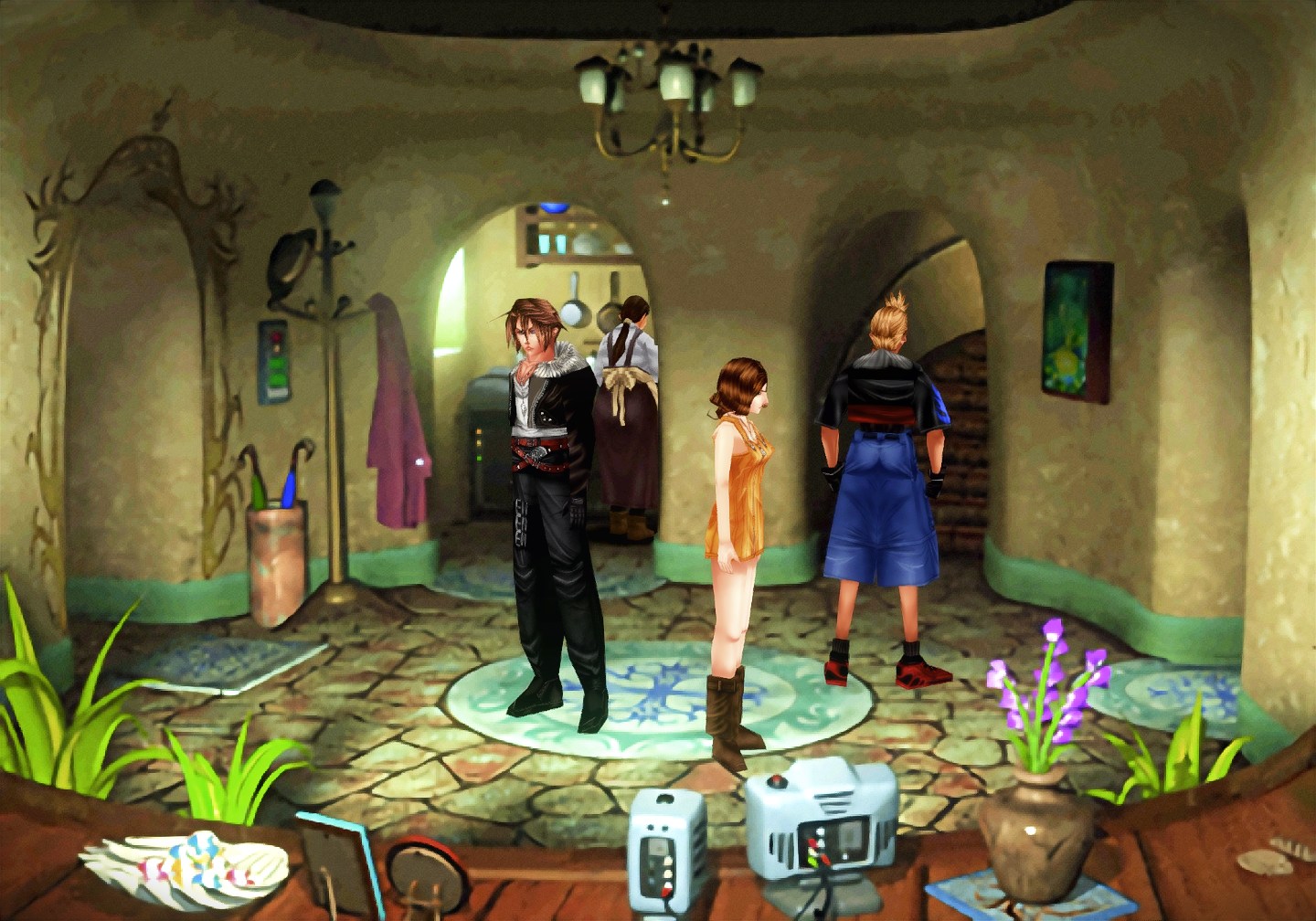
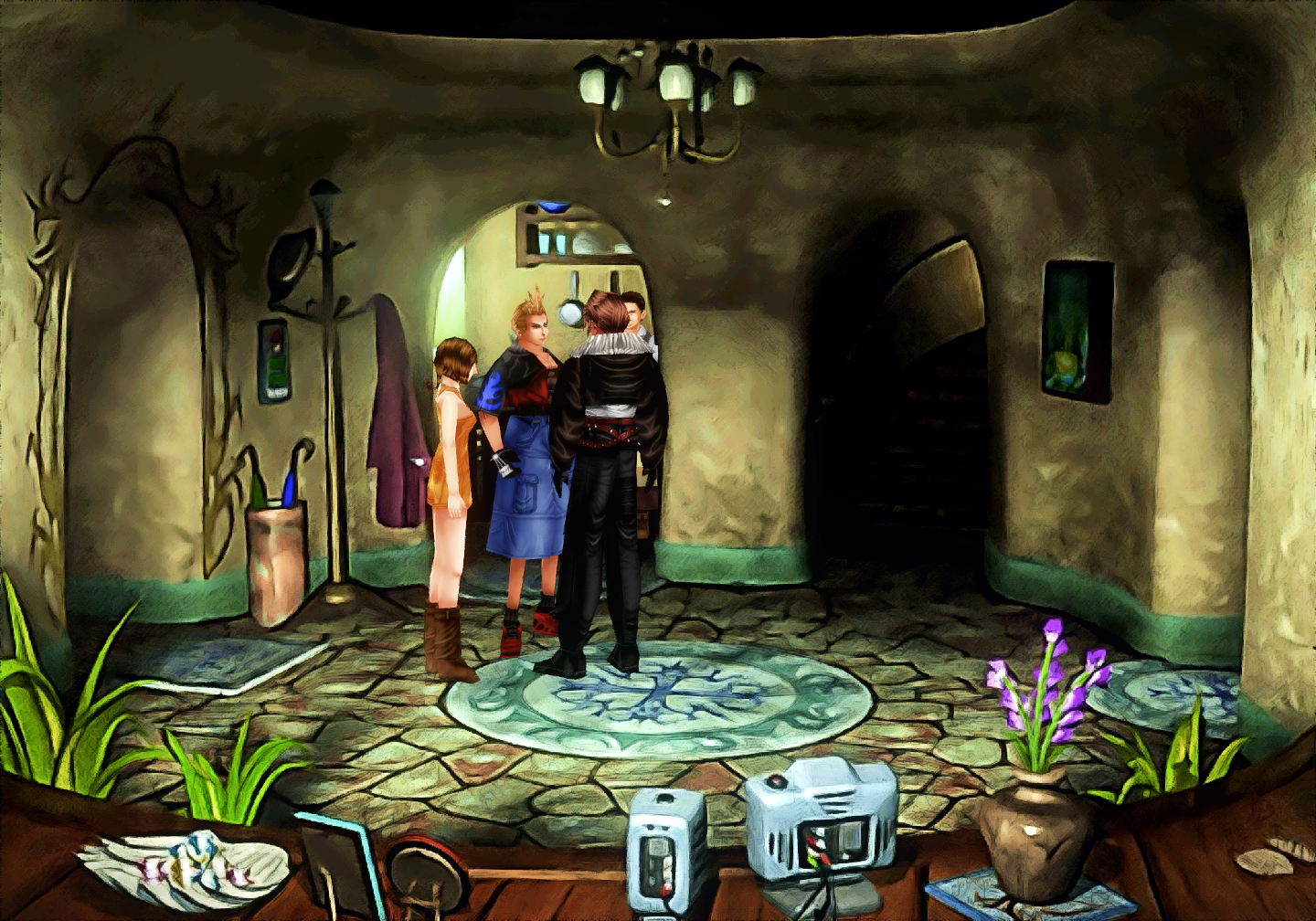
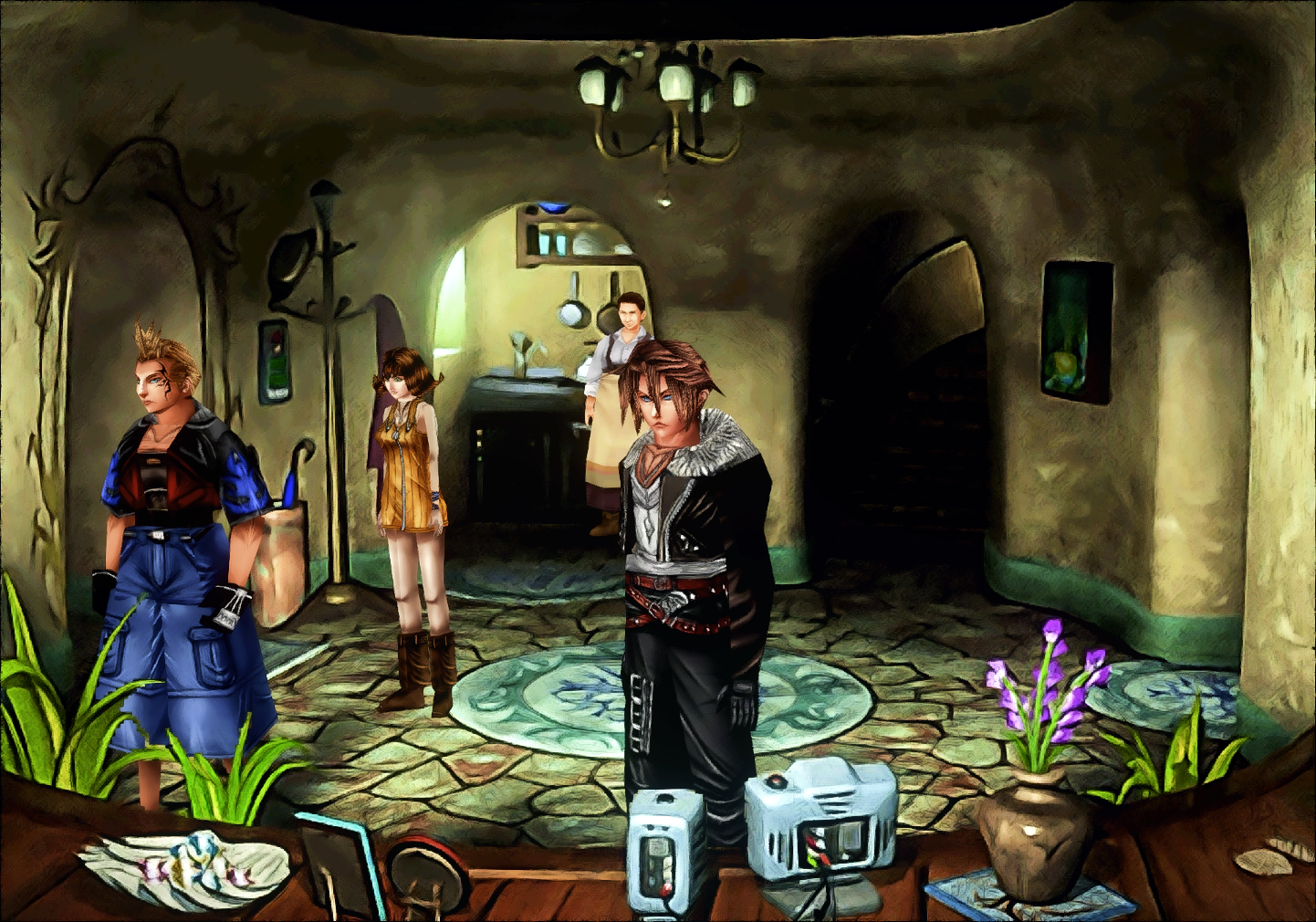
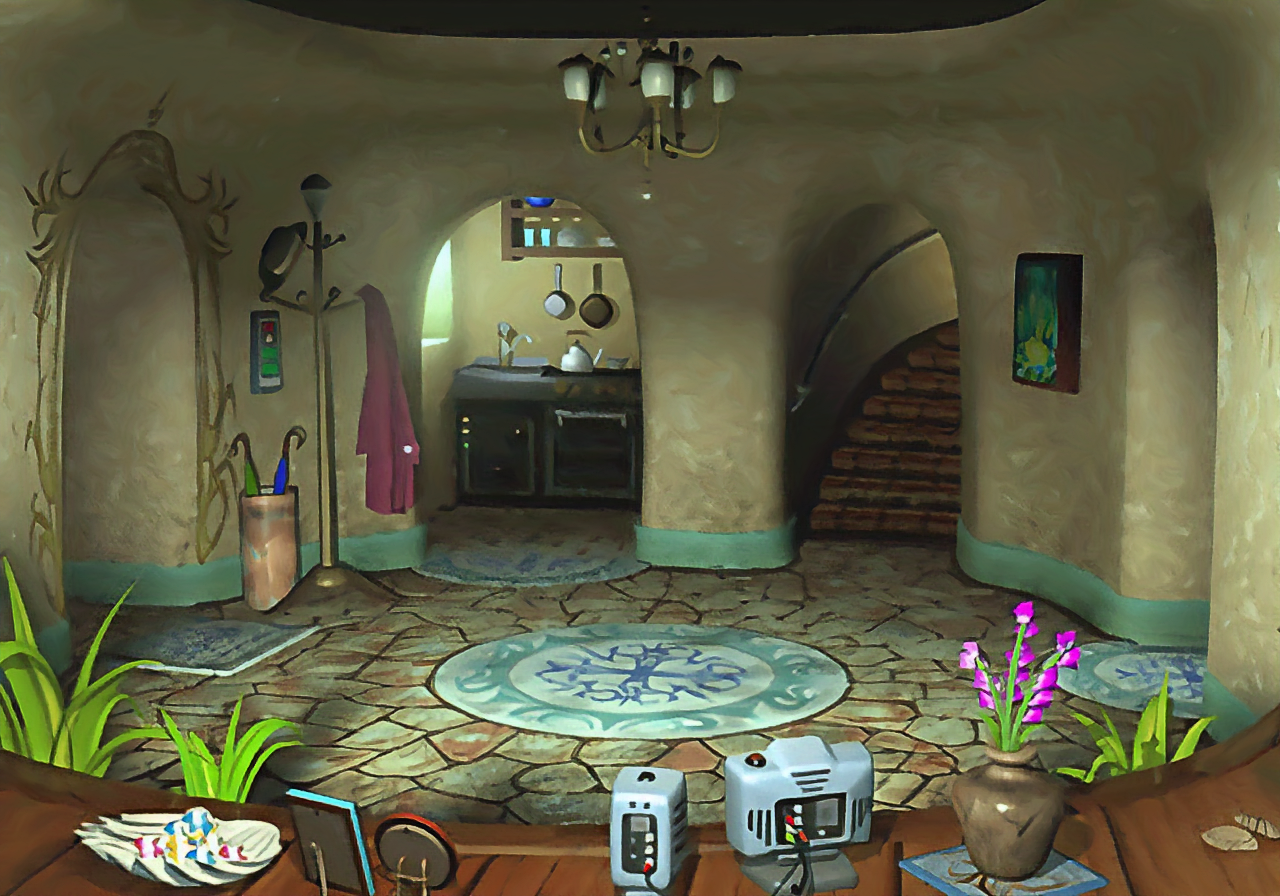
Background comparison between the original graphics and Project Eden, Project AngelWing (with latest AllFIX Patch) and my own Upscaling techniques.

Original
tFIsBTQ.png


Project Eden
lQjoFtC.png


Project AngelWIng (including latest AllFIX Patch)
FVrNoLK.png


Current blippyp Upscaling
LxYNbJl.png


It should also be noted that I also have reshade running in these shots, which tends to make my images darker.

Current blippyp Upscaling with initial skin texture updates as well to match backgrounds
wNPyAqT.png
 
Last edited:
I'm not a fan of making it all dark, anyway heres the same image with manga109 applied to it

bcmin2_1_rltk7d1c.png
 
Ya, some images it looks good in, while others would need to be 'tuned down' on the effect. like that previous image I posted in the town, I think overall it looks quite well, but in zell's house it looks pretty bad (even considering reshade darkened it up more). But it was the easiest background to change that my current saves let me go to so I used it for an 'in-game' shot.

I really like that manga109 image you posted though, that's a damn nice filter. How do I go about getting my hands on that? I'm not having much luck finding it so far with my initial searches. From what I can tell it's a dataset provided by a college/university or something like that and tbh, it's license might not really apply for using like this from what I've read so far. Do I have to fill out that application form or is there an easier way to use it?

With just a couple quick filters the pixelation on that image can be easily removed, it really requires very little effort to fine tune it, I'd like to see some of the other backgorunds done with it also (I consider this particular background to be one of the worst I've worked with so far tbh):
RynO02v.png


With just some very minor softening and resharpening of the image produces fantastic results, and that's just one attempt without even really testing our much I should soften or sharpen it up. I think we would be hard pressed to find something better than this to work with, I'd really like to get my hands on it.
 
Last edited:
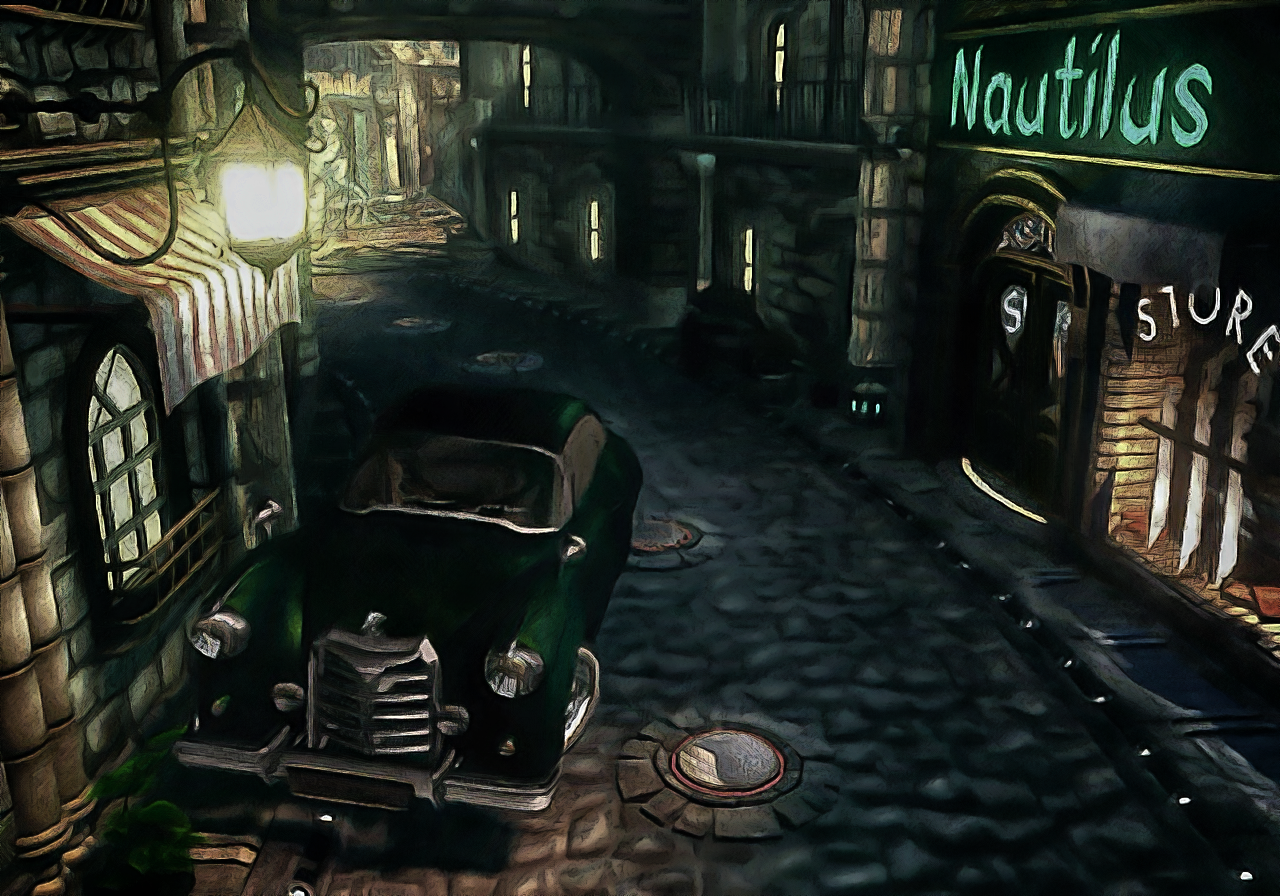
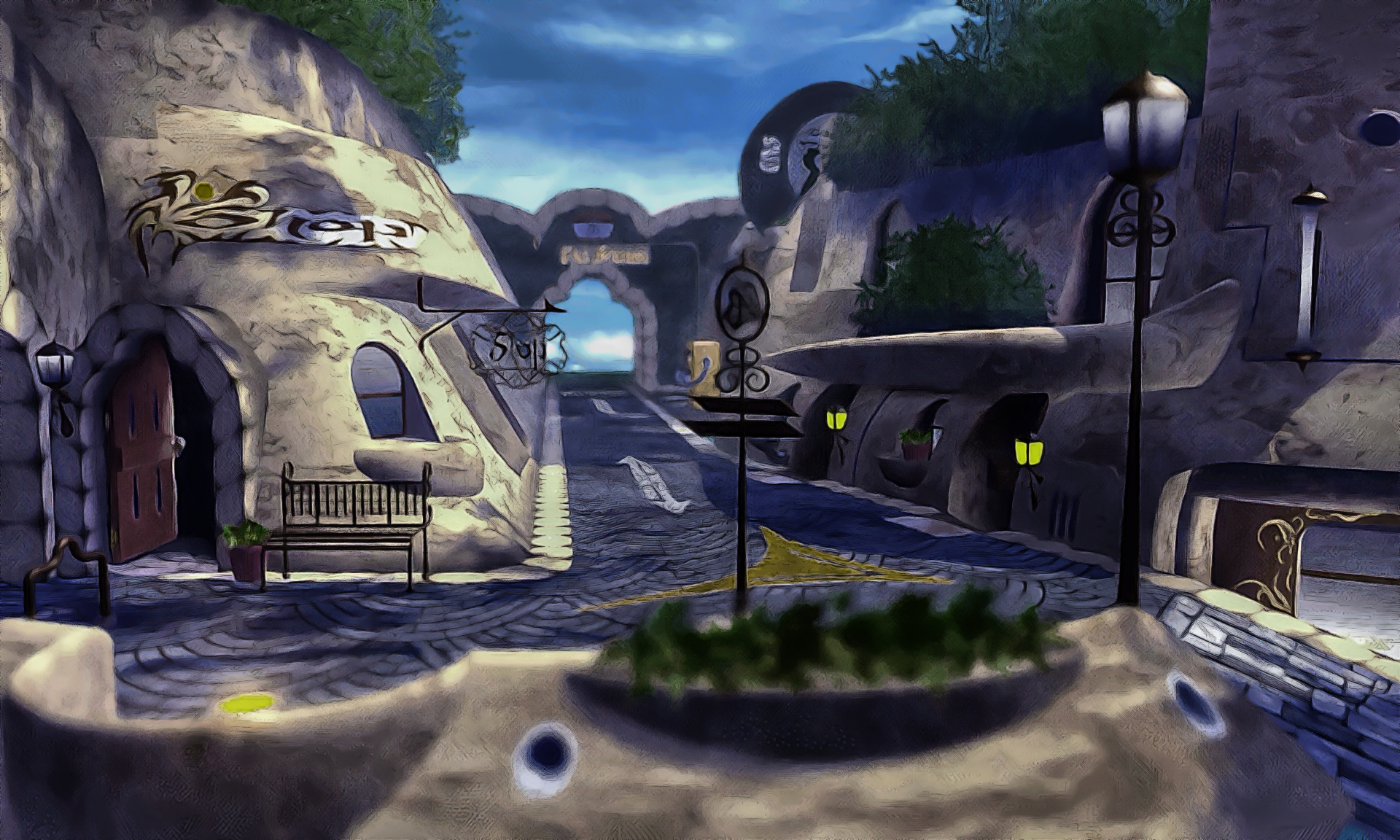
Really liking this Manga filter so far, have only discovered a couple of images that will likely need to be 'tweaked' further imo. I have developed a process for mass processing at this point and am running it thru my initial testing. I still need to alter the process to also pull the alpha layers from the images as well and rejoin them since the Manga filter outright destroys those, and I still have many images to pull from the source data files, but definitely getting some where now. Even as is, I think this would make for a great background update.

I have processed 15 images so far, it didn't take that long tbh, once I have all the images collected and have the process in place to also preserve the alpha layers, I'm guessing I could process all the images in a day easily. I am currently running another 63 images thru the process and will be adding them to the album I'm posting now. I promised the family I'd take them to the theater, so when I get back I'll likely upload those images then. Although I'm showing at least 35 images have already been processed so I might be able to start uploading them before I leave even.

[EDIT: Those 63 images are uploading now]

Until then, here is the album:
https://imgur.com/a/mjVrfdV

iNqkQOa.png
 
Last edited:
Status
Not open for further replies.
Back
Top