
[FF8PC-Steam] GeDoSaTo Config v2.3 (Compatible with ReShade)

  • Thread starter Thread starter Mcindus
  • Start date Start date
Status
Not open for further replies.
M

Mcindus

Guest
FF8 GeDoSaTo Config v2.3
by MCINDUS
Update: 9/04/2018

**BRAND NEW RELEASE!!
**ALL LANGUAGES AVAILABLE!!
**NOW COMPATIBLE WITH RESHADE!!


These Configuration Profile enable the use of GeDoSaTo in Conjunction with ReShade, Tonberry, and the Steam Overlay!  If you are using GeDo AND ReShade, make sure you use v2.3(r).  For the 'normal' GeDo standalone version, use version v2.3(g).

These configurations are for the PC 2013 and STEAM 2013 releases only


Features:
- Downsampling 2x (4k, etc.) for beautifully smooth polygons and text!
- Use in conjunction with ReShade for maximum effect!
- Set Anti-Aliasing type and quality (If using GeDo's AA, do NOT use ReShade's)
- Enable Depth-of-Field and AO settings! [BROKEN!! TRY AT YOUR OWN RISK!]
- The ability to use Tonberry in conjunction with ReShade, Anti-Aliasing, and Downsampling!
- Enable Durante(SweetFX) or Asmodean Postprocessing effects
- Enable Steam Overlay along-side Tonberry without crashes!

*  Added more common resolutions to the FF8_Launcher profile that aren't included in GeDoSaTo by default.  Check there to enable them!
**  If you have an uncommon Refresh Rate (not 60Hz), you must list it in the FF8_Launcher profile!

Final Fantasy VIII has never looked this gorgeous!

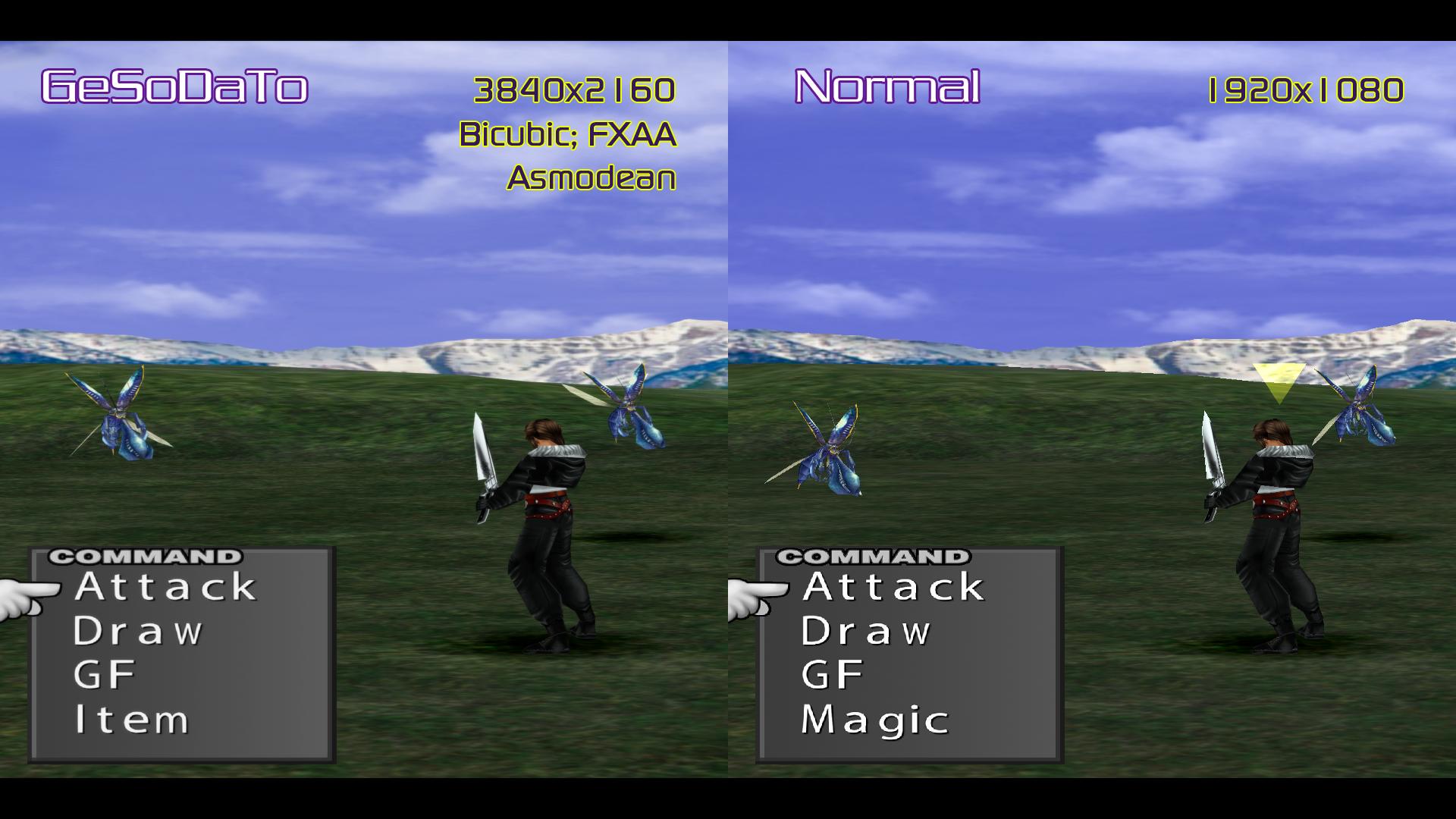
Side-by-side comparison: (OLD)
(Look at the edges of objects to get a real idea of what the downsampling and AA are accomplishing)
VIsv0xW.jpg

(Lunatic Pandora Mods Featured)

There is no longer any need to disable the STEAM overlay when using Tonberry with GeDoSaTo.

Thanks to Peter Durante for GeDoSaTo

Special thanks to Kaldarasha and KyubiNemesis for giving me the inspiration to figure this out

______________________________________

Download Link:
FF8 GeDoSaTo Config v2.3 by MCINDUS


If you enjoy this mod and any of my many others for FF8, please... DONATE HERE!
______________________________________

Instructions:

1. Install GeDoSaTo ON YOUR "C:" DISK!!
*****
A. Users must go to the Github of GeDo, download the master fork as 'master.zip' here: https://github.com/PeterTh/gedosato
B. Manually create a NEW C:/GeDoSaTo/ folder.
C. Move the contents of the /pack folder (not the folder itself)
*****
2. Unpack FF8_GeDoSaTo_v2.3 wherever you like
3. Open your Proper Language "FF8_GDSTConfig_" folder
4. Drag the 'config' folder into your \GeDoSaTo parent folder and merge them. (Mine is C:\GeDoSaTo) This will add FF8_XX and FF8_Launcher folders and 'whitelist_user.txt' to your GeDoSaTo/config/ folder.)
5. Open GeDoSaToTool.exe as Administrator [must do this EVERY TIME you load FF8]
6. Open FF8_Launcher.exe, go to "Settings" and select your new resolution from the Drop Down!
(If you don't see your downsampling resolution, you can add it in GeDoSaTo: See below)

After you hit "PLAY", you will see text in the top left of the screen confirming your downsampling rate if you did everything right


**DO NOT ALT+TAB -- the game does NOT handle swapping resolutions well.  To avoid, use in windowed mode.
**DO NOT USE MULTIPLE MONITORS -- there is currently no way to select which monitor to use via GeDo, you must use a different overlay (AMD, NVIDIA, ETC.) to do so.


______________________________________

- To configure your own settings, click 'Edit Settings' in GeDoSaTo and choose:

'FF8_Launcher/GeDoSaTo.ini' to modify your rendering resolution and frequency.

'FF8_EN/GeDoSaTo.ini' for Graphical settings and to enable DoF and AO!
** [CURRENTLY NOT FUNCTIONING] To enable the DoF/AO "pluginOverride GenericDepthPlugin" command by removing the # before the command in the FF8_EN (or whatever language) profile in order for the DoF and AO settings to work.  Currently GeDo can't find the z-depth buffer information, so there's no way to find the hash for the DoF and AO, so it applies to the whole screen.  This -may- be fixed in the future, if anyone can find the hash value.**
______________________________________

Settings by default for v2.3(g) are:
Resolution = 3840x2160@60Hz (4k)
Scaling Method = lanczos
Anti-Aliasing = FXAA; Med (2)     (OFF in v2.3r)
Postprocessing = On; asmodean  (OFF in v2.3r)
______________________________________

To enable SweetFX and/or change Asmodean options:

Click "edit postprocessing" and choose your SweetFX settings for 'durante' -OR-
Go to GeDoSaTo/assets/post.fx for the 'durante' SweetFX options (open in notepad, etc.)

Click "edit alt. postproc." and choose your settings for 'asmodean' -OR-
Go to GeDoSaTo/assets/post_asmodean.fx for the 'asmodean' Postprocessing options

***CURRENT BUGS***
*Steam Overlay is currently Un-Clickable, but Big Picture Mode seems to work well.
*You -may- need to put the D3DCompiler_47.dll file into the /steamapps/common/FINAL FANTASY VIII/ parent folder to get things to work correctly!
*Some players are having an issue where GeDoSaTo must be located on their C:\
 drive.

Happy Modding!
As always, leave comments and questions below
-MCINDUS-

Updated: 9-04-2018
 
Last edited:
Running the game with this just adds a nice touch to all the beautiful mods you guys keep crankin out. And thanks for the mention, that's really cool!
 
Nice tool, but i can't change my screen to 1440x900? Some bug?
 
Nice tool, but i can't change my screen to 1440x900? Some bug?
Where are you trying to change it? You can just edit the main GeDoSaTo.ini file for FF8_EN by clicking 'edit settings' and selecting 'FF8_Launcher/GeDoSaTo.ini' (or 'FF8_Launch2/GeDoSaTo.ini' if you use RaW.)  Right now, its set at 2x 1920x1080 (3840x2160).  Add 2880x1800 (double your resolution) to the list like this:

# Graphics settings

# The actual rendering resolutions you want to use,
# and how many Hz you want the game to think they work at.
# REMOVE THE # SYMBOL BEFORE THE RESOLUTION YOU WISH TO USE
# SELECT ONLY ONE RESOLUTION
# format: renderResolution [width]x[height]@[hz]
clearRenderResolutions
renderResolution 2880x1800@60         <----- add this line with NO "#"(*put your real refresh rate if not 60hz)
#renderResolution 3200x1800@60
#renderResolution 3840x2160@60       <----- add "#" to this line to disable it
#renderResolution 4480x2520@60
#renderResolution 5120x2880@60
#renderResolution 7680x4320@60

Make sure you click 'save' and then close the window, but leave GeDoSaToTool.exe open.

Open the FF8 launcher now, and you should be able to select the new 2x resolution (2880x1800).

You MUST pick a multiple of your monitor's resolution!

=============

Another workaround:
You can also copy/paste this section just below the resolutions in FF8_Launcher/GeDoSaTo.ini (or FF8_Launch2/GeDoSaTo.ini for RaW users) like so:

# The resolution you want to downsample *to*.
# Should generally always be your output device pixel size and frequency.
# Writing something not supported by the display here will probably cause a crash.
# 0 = main monitor resolution
presentWidth 0
presentHeight 0
presentHz 60

**Just changing this in GeDoSaTo.ini's main settings won't apply due to the override needed for the resolutions, so make sure you add it to your FF8 Launcher settings ini file instead!

If this STILL doesn't work, try changing the 0's to your actual resolution (as well as Hz).

Let me know if this helped!
 
Last edited:
I managed to work, just installed in other directory

I love FFVIII in maximum quality. So in the settings i manage to put the pink area completed aliased, but now i can't.


How i can disable that square in upper right corner?
 
Wait a tick--does this GeDoSaTo also smooth out FFVIII's 2D backgrounds? Holy moly!
 
Wait a tick--does this GeDoSaTo also smooth out FFVIII's 2D backgrounds? Holy moly!
I'm actually loaded to the teeth with mods too... I guess I should do a vanilla screenshot comparison XD
 
I've actually tried this out before and it worked well. Downside for me is that my game lags at certain points once set at 1080p. Examples being in the final battle and using Rinoa's Wishing Star limit. Setting the resolution higher slows those scenes to a crawl. Still not sure why that happens. It's really a shame because I like this.
 
Hm... well, using a few tweaks, I seem to be able to broadcast on Steam just fine using GeDoSaTo and Tonberry!  I haven't had the chance to try this while getting an achievement, but it works!  The one downside is that you can't pull up the overlay using Shift+Tab or the game crashes.  I set my Steam Settings to not display any messages in the Overlay when I get chats or when I take a screenshot, but I can take screenshots to boot!

Let me know if you want to test this!
 
Hello, tried most of your mods and work very well, thanks for your job.
But i got a problem with this mod, i have rose and wine so i chosed the raw folder and followed everything correct but when i set correctly the resolution 3xxx on launcher...game is not on full screen, its Windowed.  Tried to Force some setting but i don't know what to do, can you help me?
 
Last edited:
Hello, tried most of your mods and work very well, thanks for your job.
But i got a problem with this mod, i have rose and wine so i chosed the raw folder and followed everything correct but when i set correctly the resolution 3xxx on launcher...game is not on full screen, its Windowed.  Tried to Force some setting but i don't know what to do, can you help me?
Are you making sure that GeDoSaTo is the first thing you open?  Make sure you open GeDoSaTo and THEN the FF8 launcher.  It might be having an issue with the latest version of RaW - I haven't updated to the latest version to make sure HextLaunch is working properly with it. 

Also - make sure that the resolution is double whatever your monitor resolution is.  If your monitor is not 1920x1080, you're going to have to manually change the settings to some multiple of your monitors resolution in the FF8_Launch2/GeDoSaTo.ini pulldown in 'edit settings'.

--Just got an idea.  With HextLaunch now being the way you launch FF8 (the FF8+.exe), you should be able to use the regular config and NOT the RaW config. I'm going to test this right now.
 
Last edited:
Are you making sure that GeDoSaTo is the first thing you open?  Make sure you open GeDoSaTo and THEN the FF8 launcher.  It might be having an issue with the latest version of RaW - I haven't updated to the latest version to make sure HextLaunch is working properly with it. 

Also - make sure that the resolution is double whatever your monitor resolution is.  If your monitor is not 1920x1080, you're going to have to manually change the settings to some multiple of your monitors resolution in the FF8_Launch2/GeDoSaTo.ini pulldown in 'edit settings'.

--Just got an idea.  With HextLaunch now being the way you launch FF8 (the FF8+.exe), you should be able to use the regular config and NOT the RaW config. I'm going to test this right now.
thanks for answer, yes i lauch 1st gedosato and i can set the double resolution(main res is 1920x1080). I tried also the normal config but no luck...game launch in windowed mode! i tried also to disable full screen in launch option and game still launch in widowed but with window more "larger". I don't know what to do
 
Can you do me a favor and switch to the NON-RaW version and give it a try?  Let me know what happens.  If you still have the same problem, message me your FF8_EN/GeDoSaTo.ini and your FF8_Launcher/GeDoSaTo.ini so I can look through them.
 
i tried the non raw folder but problem is the same! game launch in window mode. I can paste and copy the 2 ini file you but they are default..so i don't touch anything inside!
Just saw onw thing, in you main post there is "- You will see text in the top left of the screen confirming your downsampling rate if you did everything right". well i don't get this message when i change the resolution in laucher

EDIT: i tried to launch the game from steam instead shortcut ff8+..game still in windowed mode. I tryed to disable full screen in launcher option and i got this:

http://i.imgur.com/mglGlgS.png

not full screen, but larger windowed mode and there is a message on top side
 
Last edited:
i tried the non raw folder but problem is the same! game launch in window mode. I can paste and copy the 2 ini file you but they are default..so i don't touch anything inside!
Just saw onw thing, in you main post there is "- You will see text in the top left of the screen confirming your downsampling rate if you did everything right". well i don't get this message when i change the resolution in laucher

EDIT: i tried to launch the game from steam instead shortcut ff8+..game still in windowed mode. I tryed to disable full screen in launcher option and i got this:

http://i.imgur.com/mglGlgS.png

not full screen, but larger windowed mode and there is a message on top side
Do you have multiple high resolutions avalable or just the 3xxx?  If you're not using the english version , try changing the name of FF8_EN to whatever your language .exe is in the GeDoSaTo 'config' folder!  Open the User Whitelist and change it there too.
 
Last edited:
Do you have multiple high resolutions avalable or just the 3xxx?  If you're not using the english version , try changing the name of FF8_EN to whatever your language .exe is in the GeDoSaTo 'config' folder!  Open the User Whitelist and change it there too.
already done this, but no luck, i posted a screenshot if you look previous so everything should work i think and maybe this this downsampling 2 level make the game windowed but i don't know how to fix

EDIT: i don't know how..but i maked it work with the default launcher! but problems now is no music coz rose and wine mod! so i tried launch from ff8+ and i got this:

http://i.imgur.com/IYn7kHF.jpg

how can i remove this?
 
Last edited:
already done this, but no luck, i posted a screenshot if you look previous so everything should work i think and maybe this this downsampling 2 level make the game windowed but i don't know how to fix

EDIT: i don't know how..but i maked it work with the default launcher! but problems now is no music coz rose and wine mod! so i tried launch from ff8+ and i got this:

http://i.imgur.com/IYn7kHF.jpg

how can i remove this?
Can you PM me your default GeDoSaTo.ini file?  not the FF8_EN/GeDoSaTo.ini file, just the normal GeDoSaTo main one.  There might be some conflicting setting at this point.  If you can't PM yet, you can also put it in a [ code ] [ / code ] (leave out the spaces) section so it wont flood the post if you post it here.
 
Code: [Select]
Code:
# Lines starting with "#" are ignored by GeDoSaTo and used to provide documentation# read them before changing anything!## NOTE 1: you might want to set most of these settings in game-specific setting files# if a game has a profile the settings there overwrite the defaults specified here!## NOTE 2: if you want your personal settings to persist across updates# put them into a user config file (created with the "U" button below)######################################################################################### Graphics settings# The actual rendering resolutions you want to use,# and how many Hz you want the game to think they work at.# format: renderResolution [width]x[height]@[hz]renderResolution 3200x1800@60renderResolution 3840x2160@60renderResolution 4480x2520@60renderResolution 5120x2880@60renderResolution 7680x4320@60# The resolution you want to downsample *to*.# Should generally always be your output device pixel size and frequency.# Writing something not supported by the display here will probably cause a crash.# 0 = main monitor resolutionpresentWidth 1920presentHeight 1080presentHz 60# How many vertical traces to wait when presenting# -1 = unchanged#  0 = no vsync#  1 = standard vsync#  2 = half refresh rate (e.g. 30 on 60 Hz)#  3 = 1/3rd refresh rate, etc.presentInterval -1# The type of scaling you want to use.# bilinear: what GPUs generally do, cheap performance-wise# bicubic: higher quality, more expensive performance-wise# lanczos: higher quality and sharp, most expensive performance-wise# nearest: extremely cheap, generally ugly, but useful to upsample retro gamesscalingType bicubic# Whether to maintain the aspect ratio if different ratios between input and output# false = stretching#  true = pillar/letterboxingmaintainAspectRatio false# Forces an anisotropic filtering level#  0 = no override#  N = force Aniso level N on all surfaces (eg. N=16)# NOTE: this is more "brutal" than the driver-level override, and may break the graphics#   in some games. Outside of special circumstances (e.g. FF13), you should rather use a #   driver-level override.forceAnisoLevel 0######################################################################################### Compatibility Settings# Forces the constant reporting of the downsampling resolution in all applicable# scenarios - a small selection of games needs this to show the DS resolutionsforceAlwaysDownsamplingRes false# Emulate exact flipping behaviour# requires some extra performance/memory,# but may be important for some games to workemulateFlipBehaviour false# Restricts interception to only system dlls# might increase compatibility with 3rd-party injectors, but decrease stability interceptOnlySystemDlls false# Force disables Steam in-game overlay from getting loaded into the process# which caused some games to crash, even if it was disabled in Steam settingspreventSteamOverlay false# Loads Steam overlay earlyloadSteamOverlayEarly true# Loads D3D dlls early - may cause some games to recognize GeDoSaTo which wouldn't otherwiseloadD3DEarly true# Forces the present resolution to be set, regardless of what the game requests# usually only makes sense in conjunction with game-specific plugins# for games with resolution limitsforcePresentRes false# For games which use strange methods to query resolutions,# injecting a new one might not work. In such cases, you can try replacing an# existing resolution. E.g. "overrideWidth 800", "overrideHeight 600" to replace 800x600# 0 = override disabledoverrideWidth 0overrideHeight 0# GenericDepthPlugin options# zBufCompatibilityFlag : bypasses d3d9 Clear flags (possible values: 2/3/6/7) <-- try this first if no AO shows up# zBufClearIndex        : delays the bypass by x number of iterations <-- to fix potential flickering issues (usually 1/2/3 is fine)zBufCompatibilityFlag 0zBufClearIndex 0# Override the plugin selection process to always select the given plugin# example: pluginOverride GenericDepthPluginpluginOverride None# Delays the detouring operation until the first hook call (like the old default injection)# may fix startup crashes in some games (e.g. Alan Wake)delayDetouring false######################################################################################### Windowing settings# Hides the mouse cursor, at all times# options: "true" (= hidden) and "false" (= unchanged)hideMouseCursor false# Forces borderless windowed fullscreen mode instead of fullscreen mode# options: "true" (= force borderless windowed FS) and "false" (= unchanged)forceBorderlessFullscreen true# Forces "real" fullscreen (e.g. for games which only support borderless FS)# NOTE: this can lead to alt-tab crashes, as these games may not handle focus loss correctlyforceFullscreenMode true######################################################################################### Image processing settings# Note: may or may not apply depending on the plugin used## AA# AA toggle and quality setting# 0 = off (best performance, worst IQ)# 1 = low # 2 = medium# 3 = high# 4 = ultra (worst performance, best IQ)aaQuality 0# AA type# either "smaa" or "fxaa", depending on your preferencesaaType fxaa## SSAO# Determine the type of AO used# "SAO" = Scalable Ambient Obscurance# "HBAO" = Horizon Based Ambient Occlusion# "VSSAO2" = Volumetric SSAO# "MSSAO" = Martinsh SSAO inspired by ArKano22ssaoType SAO# Enable and set the strength of the SSAO effect # (all 3 settings have the same performance impact!)# 0 = off# 1 = low# 2 = medium# 3 = highssaoStrength 3# Set SSAO scale# 1 = high quality (default)# 2 = lower quality, lower impact on performancessaoScale 2# Set SSAO Blur type# gaussian = soft, cheap# sharp = depth-dependent, more expensivessaoBlurType gaussian## DOF# Enable Depth of Field# false = off# true = onenableDoF false# Select the type of DOF effect# basic = basic pseudo-Bokeh DoF# bokeh = shaped circular Bokeh DoF - WARNING: high performance impactdofType bokeh# Bokeh Depth of Field radius# default = 1.00# higher = more blurry (e.g. 1.1)# lower = less blurry (e.g. 0.9)# note: small changes make a large differencedofBaseRadius 1.05## Post# Enable Postprocessing# false = off# true = on# For in-depth configuration, look in "assets/post.fx" or "assets/post_asmodean.fx"enablePostprocessing false# Postprocessing type# durante = basic postprocessing adapted from SweetFX (dark, local contrast)# asmodean = postprocessing by Asmodean (with tone mapping, softer)# For in-depth configuration, look in "assets/post.fx" or "assets/post_asmodean.fx"postProcessingType durante## Bloom# Enable HDR Bloom# false = off# true = on# For in-depth configuration, look in "assets/bloom.fx"enableBloom false######################################################################################### Texture settings# Dump game textures loaded using d3dx to textures\[gamename]\dump\[hash].tga# if you enable override at the same time, the overridden texture will be dumpedenableTextureDumping false# Override game textures loaded using d3dx with those from# textures\[gamename]\override\[hash].(dds|png), if availableenableTextureOverride false# Mark textures with their hash (for texture modders)# WARNING: extremely slow if a game loads many textures# (if you think a game crashed, it's probably still just loading textures)enableTextureMarking false######################################################################################### Mouse settings# you may have to play around with these a bit to get mouse input working correctly# while downsampling in some games# Modify the mouse position reported by "GetCursorPos" when downsamplingmodifyGetCursorPos false# Modify the mouse position set by "SetCursorPos" when downsamplingmodifySetCursorPos false# Intercept the WindowProc callback of the game and adjust mouse messages when downsamplinginterceptWindowProc false# Adjust the mouse position reported in peeked Windows messages when downsamplingadjustMessagePt false# Adjust the reported client rect when downsamplingmodifyGetClientRect true# Adjust the reported window rect when downsamplingmodifyGetWindowRect true######################################################################################### Internal settings# The amount of logging output for debugging purpose.# Should be set to 0 if everything works fine for performance reasons.logLevel 0# Enable shader tracking# Turn on only if you want to find a PSHash/VSHash for a game!trackShaders false# Number of seconds on-screen messages are displayed formessageSeconds 10# The maximum degree of parallelism for screenshot encoding#  N = use up to N worker threads for screenshots#  0 = synchronous (no parallelism)# -1 = TheOctagon mode (stores .bmp using D3DX API, very slow, use only as a workaround)maxScreenshotParallelism 4
 
Yes sure! I got it working with the default launcher..but when i use the ff8+ or the hex for the add ons, always appears this Black square
 
Status
Not open for further replies.
Back
Top