North Mako Reactor Bridge (Q-Gears)

  • Thread starter Thread starter qmodder
  • Start date Start date
Status
Not open for further replies.
Q

qmodder

Guest
I have been making the nrthmk scene in blender for use as a simple scene for Q-Gears field, possibly a debug area.  Here is where I have gotten so far
mjlYzyO.png


However I am having a slight problem with materials, the materials are stretched on the side of the bridge as seen here.  I'm using a procedural Musgrave texture that should not need UV unwrapping and should simply apply everywhere like it does on the rails
P5x55KN.png


I have double checked the normals and recalculated them but the textures are still stretched, here is how the wireframe and normals looks like:
MifZtzN.png


Any idea on what might be causing this?
 
With reference to the node editor, by default noise textures are mapped along what would correspond to the "Gererated" texture coordinate. Often, this "stretching" occurs because of this. You have two solutions:
- You can UV-unwrap the texture, add a "Texture coordinate" node, and connect the "UV" output of the Texture Coordinate node to the input of your node texture (this is what I regularly do). The surface you were showing in your images is about the simplest thing to UV unwrap, because it's a flat surface which requires no seam.
- If you keep the default mapping, what you can do is add in a "Mapping"  node (Under "Converter"), and plug the output of your mapping node to the input of your noise texture. You can then control the "stretching" of your texture using the "Scaling" parameters in your Mapping node. Conversely, you can use this node if you want to deliberately compress or stretch a texture along a certain direction, or even rotate a texture by a certain angle.

As a side node: SpooX must have some material for nrthmk, maybe he could save you some modelling time (although he works with 3ds). 


EDIT: After double-checking I realized that I did not see your image correctly. Let me revise my earlier comments:

The projection of your noise texture along the "Generated" mapping is made in relationship with the dimensions of the objects. The stretching occurs since one dimension (the thickness) is much smaller than the other two.
- For UV-unwrapping, you need to place some seams. However, this case is rather easy: you can place seams along the top and bottom surfaces, plus all vertical edges.
- If you go for the "Mapping" solution, you may need to assign 2 materials to the object, leave the top surface material as is and do the Mapping correction on the material you assign to the thickness of the bridge.
 
Last edited:
I'm trying to avoid UV-unwrapping because I fear it will make future changes to the bridge mesh harder.
From what I have seen from SpooX's models 3ds somehow auto fixes this, he applies a concrete material to everything without issues or having to make corrections.  Is there some way to mimic that in Blender?  The material is supposed to be a placeholder or somewhat of a standard material before I apply the real textures of the bridge that's why I went with a procedural material thinking that it would auto apply itself evenly but that is not the case.
 
From my experience, I don't think there's an easy way to avoid texture stretching if you do not UV-unwrap. However, UV-unwrapping does not constrain the way you mesh something. Often, you can UV-unwrap, then add modifiers (subsurf, for instance), and the texture is still applied as you would like. As worst, you may have to redo your UV-unwrap.
When I was a beginner, I tended to avoid UV-unwrapping because I didn't know how to get the seams properly. It takes a bit of practice, but after a fashion your eye is trained for it. More importantly, in 99% of the cases, that's the way to go for obtaining the desired results. The sooner you can get into UV-unwrapping, the better. Try and practice, it may seem intimidating at first but it's actually not that big of a deal, especially if you start with UV-unwrapping box-shaped or cylinder-shaped objects.
 
Sorry for the long absence but I was playing around with various scripts related to UV mapping.  I was trying to avoid it since its hard to extrude/scale and add more geometry once you have perfected the UV mapping but I decided its something you have to deal with and did my UV project :)
Ek4tMDi.png


Its much better than before but its still  a bit stretched, is there anything I can do to fix that?

Here is a close-up
tSsFMvM.png
 
Last edited:
One possible cause of such stretching, after UV-unwrapping, might be because of unapplied scaling. If that's the case, select your object, then in the toolbar of the 3d viewport select: Object > Apply > Scale. Let me know if that works.

EDIT: By the way, looking at your node setup: I do not advise mixing diffuse shaders in this this fashion. I think it is more suitable to mix colors (with Color nodes), which you use as an input to your diffuse shader.
 
Last edited:
I tried applying the scaling and switched from mixing shaders to mixing colors however its still bad:
5e1uBmp.png


But really, I don't want to spend too much time on the materials, I want to spend more time modeling the rest of the scene that working out why this is stretching, are there any concrete materials that apply evenly automatic?
 
To be honest, if you have applied scaling and the object is UV-unwrapped correctly, I don't see why you end up with this stretching problem. You could try to send me the .blend file so that I can investigate.
Otherwise, if you want to get into proper texturing, please check out cgtextures.com, which is my main source of textures (the free registration gives you access to most of the stuff).
 
So.... I just checked your .blend file. All in all it's very simple: your bridge was not UV-unwrapped correctly.
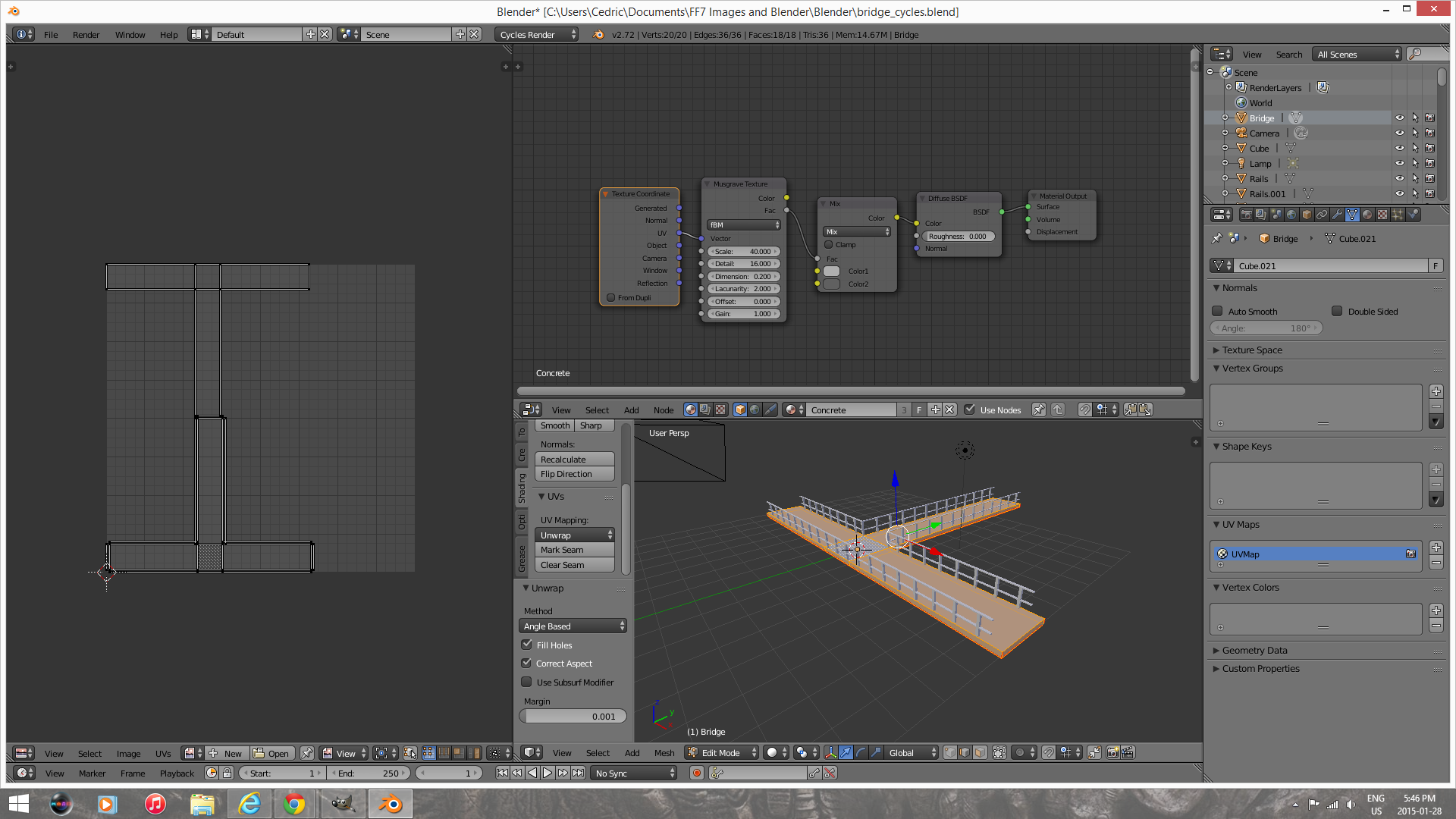
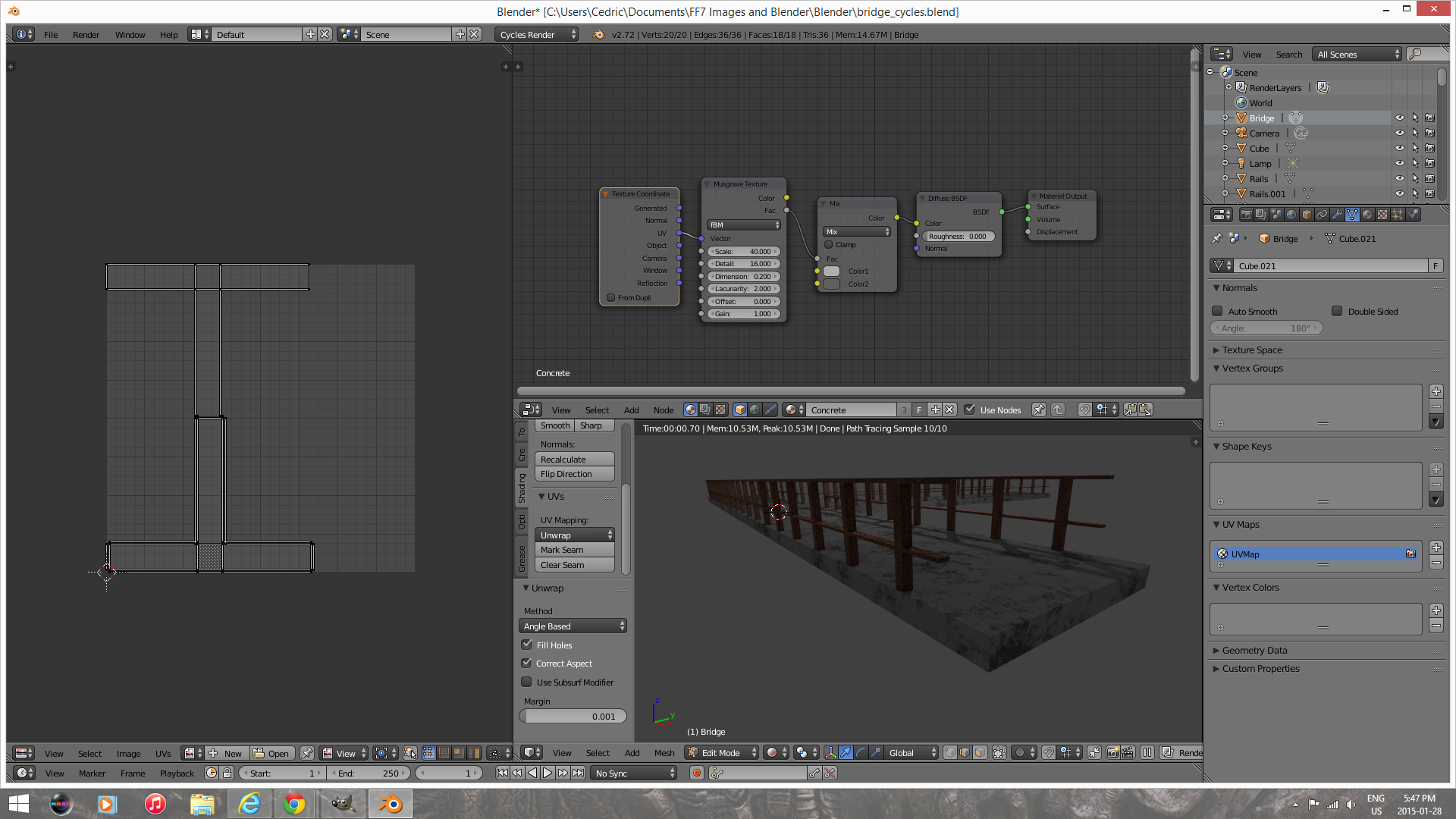
One quick way to "diagnostic" the problem: When you put one of the sub-windows in Blender as "UV-image editor", you can see in that window the UV-unwrap of a select object in your 3D viewport sub-window, when the object is in "Edit mode" (ie. Tab). The UV-uwrap should represent the surface developed by your 3d object on a 2d surface, and describes how the texture is going to be mapped on it. When I checked your UV-unwrap, the rectangles which should correspond to the "thickness" of the bridge had the same aspect ratio as the rectangles describing the top surface of the bridge, which is incorrect. You can see this on the left hand side on the picture below.
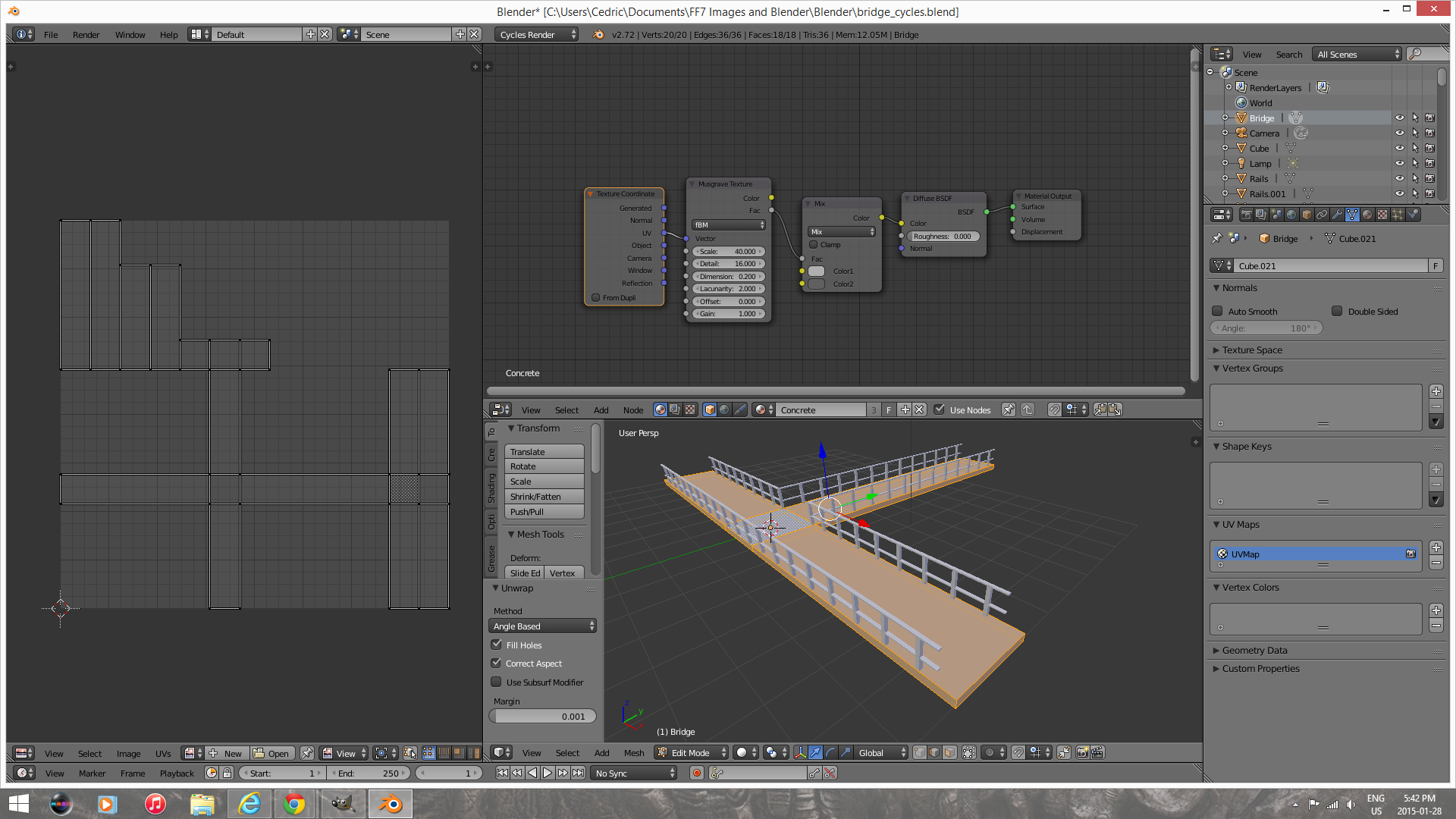
muLQuXs.png


A proper UV-unwrap should yield much slimmer rectangles for the thickness of the bridge than the rectangles describing the top surface. Additionally, your object didn't have any seam for the UV-unwrap to be made. I'm assuming you must have used one of the automated UV-unwrapper, such as "Smart UV project", whose "smartness" only takes you so far.
So how to do this correctly:
Select your object. Go to edit mode. Then you would have to select the edges which will be the seams of your UV-Unwrap. This is the most "tricky" part of UV-unwrapping, if you practice on cubic or cylindrical object, after a fashion it comes more naturally for more complex geometry. The seams are where you need to cut your 3d object in order to develop a flat surface. The tricky aspect is mostly about figuring the proper seams which offer the best compromise between texture continuity and distorsion (mapping a cylinder is the simplest exercise to give you the idea). In the case of your bridge, the best result would be achieved by the ensemble of seams described below:
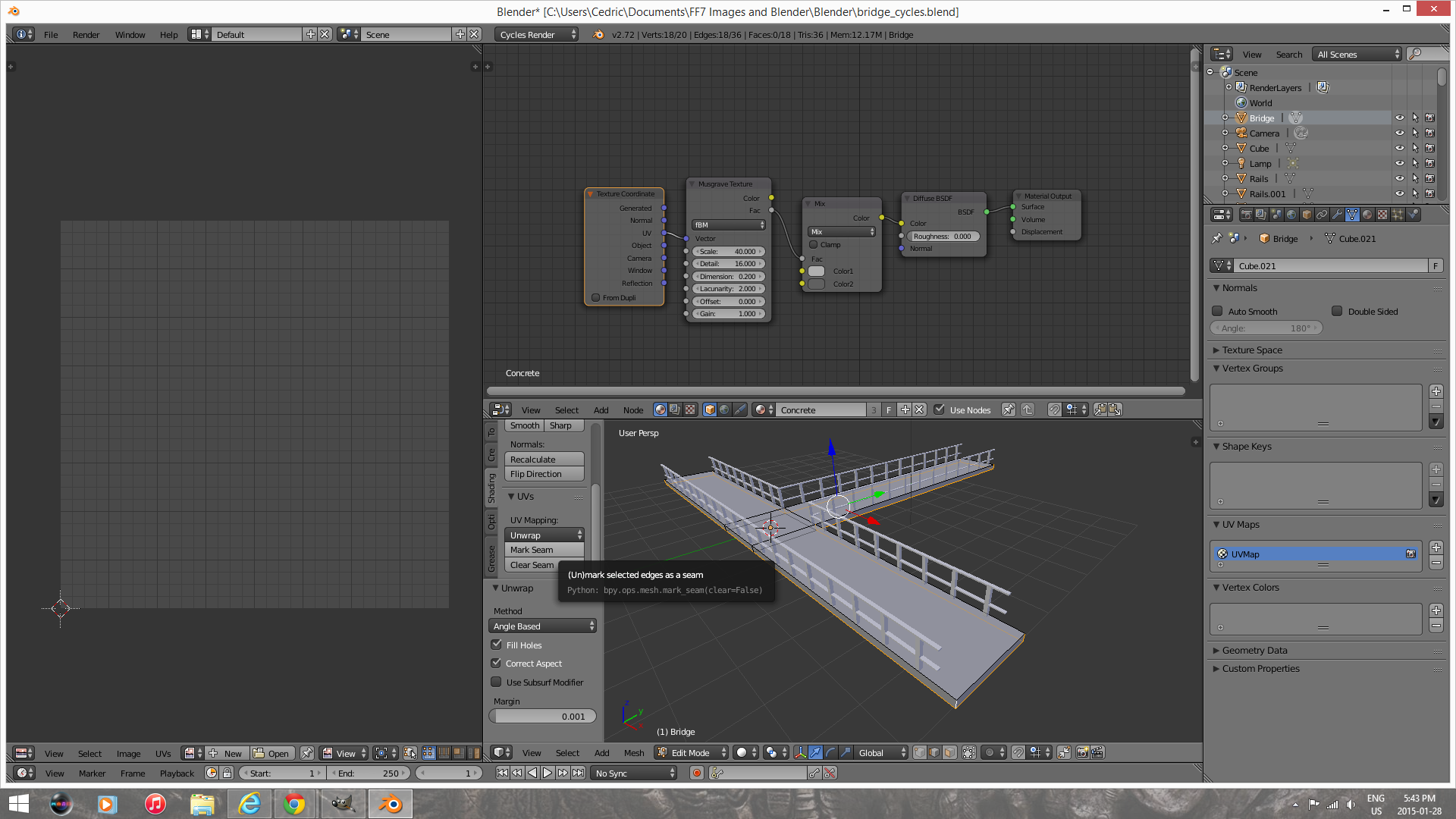
BQp3b82.png


So, what you need to do is to select these seams, then check your Tools menu, and in the Shading tab click "Mark Seam". Once you do that, the seams in question should be highlighted in red. Once that's done, all that remains is to select all the seams of the Object, then press "U" and select "Unwrap". At this point, your UV should be properly unwrapped, as described by the picture below:

yjHGop6.png


You should notice that, on the left hand side of the image, your new UV-unwrap has much better aspect ratio of the rectangles describing the object surface. Your object is now properly UV-unwrapped.

zKvVTDP.png


And that concludes our UV-unwrapping 101 n00b tutorial. Thank you, thank you. I'm here all week  ;)
 
Thanks for the tutorial!
I have added some better geometry to the bridge because bridges aren't perfectly square :)
1FM93FU.png


Is there any way to get the original camera data for this scene so I can render from where the camera in FF7 renders from?
 
Is there any way to get the original camera data for this scene so I can render from where the camera in FF7 renders from?
There is. From the PSX field data, SpooX's Shinratool (see sticky thread)can output a script which you run in Blender, yielding the walkmesh and camera data. If you don't have the PSX discs, I could prep the .blend file for you.

By the way, in theory: SpooX has this scene as "Work in Progress" (though he works with 3ds) - so as far as TA is concerned, this scene is not new content.

PS For adding geometry (without having to change your UVs), subsurf and bevel modifiers are your friends.
 
I'm trying to avoid UV-unwrapping because I fear it will make future changes to the bridge mesh harder.
From what I have seen from SpooX's models 3ds somehow auto fixes this, he applies a concrete material to everything without issues or having to make corrections.  Is there some way to mimic that in Blender?  The material is supposed to be a placeholder or somewhat of a standard material before I apply the real textures of the bridge that's why I went with a procedural material thinking that it would auto apply itself evenly but that is not the case.
Oh beware, nothing goes automatically in 3ds Max, that would be too easy  :-P

In general I do use UV mapping applied to all objects I've created, also it really depends on the model and the complexity, a box for instance is very easy to aply box mapping, like cylinder mapping on cylinders. However, also those types of mapping need to be configured, otherwise it's not as much the stretching, but the scale that is way off.

Unfortunately most of my objects or a bit more complex, so I have to use UV-unwrap and optimize the maps. That takes a lot of time... :|
and after that it's of course the creation of the maps itself.

The concrete material you might be talking about is most likely nothing but a dull grey (50%) default material which I by default aply to my models to start with.

Oh and with regards to your chosen field to model, beware that the camera view is quite annoying, especially the field of view which is quite wide-angle.

 8)
 
Oh beware, nothing goes automatically in 3ds Max, that would be too easy  :-P
I suspected as much  :)
are there any concrete materials that apply evenly automatic?
When you're inexperienced in 3d modelling, sometimes you'd expect that materials and texture be the secondary part of the process. Unfortunately, I don't think there's any"magical material applier" tool in any software.
Just some figures to give you an idea: in any scene that I've made for TA last year, I would say that only 1/4 of the time was just modelling the mesh of objects (at most). Most of the time is dedicated to UV-unwrapping, creation of materials, lighting, etc. And that's coming from someone who does prefer the meshing aspect of 3d modelling to the texturing side of it. However, the extra care you put into developing materials is what makes the difference.
 
And that's coming from someone who does prefer the meshing aspect of 3d modelling to the texturing side of it. However, the extra care you put into developing materials is what makes the difference.
let me second that :)

Oh and let's not forget the rendering time....(animation and editing the cutscenes, will not mention audio at all now)
 8)
 
Fixed camera angle, bridge size, bridge scale, railing scale and added the part of the plate where the bridge connects to!
UwgRf1t.png


EDIT1: update: Added more objects on the plates, pipes, junction boxes etc stuff you usually find around reactors.
aNgefUN.png


EDIT2: Progress!  Added nicer lighting, 90 degree pipe turns, pipe junction boxes, cableboxes and more Shinra objects and made the Sector 8 plate a bit thicker so its closer to the original.
Quick full size render with plenty of samples:
xXyNzyk.png
 
Last edited:
By the way - it's possible to use 3d scenes directly in Q-Gears )
 
By the way - it's possible to use 3d scenes directly in Q-Gears )
The modelling approach for making directly-usable 3d scenes for Q-Gears would have to be different from the one used for rendering 2d backgrounds. Basically, for rendering 2d backgrounds, we can model without much care about poly counts/mesh optimization - real-time 3d scenes would be a different story. The other matter is about lighting and shading, since the renderer you would be using (Ogre) does not necessarily support the same shaders which a 3d-modelling software would.
 
The modelling approach for making directly-usable 3d scenes for Q-Gears would have to be different from the one used for rendering 2d backgrounds. Basically, for rendering 2d backgrounds, we can model without much care about poly counts/mesh optimization - real-time 3d scenes would be a different story. The other matter is about lighting and shading, since the renderer you would be using (Ogre) does not necessarily support the same shaders which a 3d-modelling software would. 
I know this things. But if we want - we could do it. It's still needs some work with camera though.
 
Status
Not open for further replies.
Back
Top