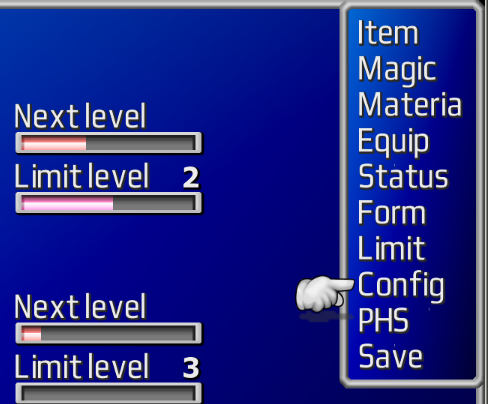
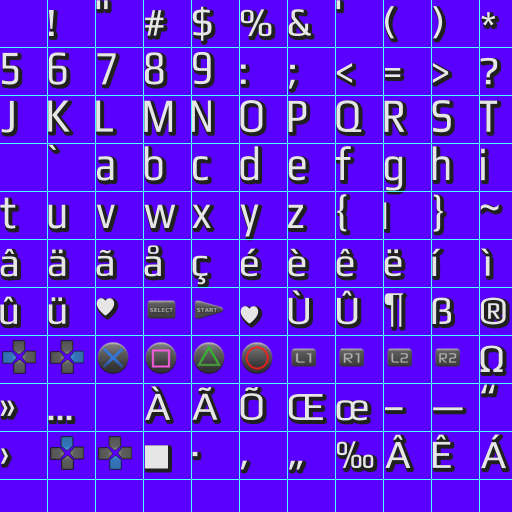
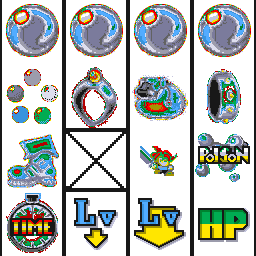
[FF7PC] Doing my font Mod. I have transparency issue. Help.

  • Thread starter Thread starter Panteleimon
  • Start date Start date
Status
Not open for further replies.
P

Panteleimon

Guest
Hi. I'm trying to do my font mod (font isn't mine, just adapting it to FF7). I use Photoshop CC 2017.
Everything went fine. I just used "Font tool" in PS with selected color. But when i needed to get various colors fonts, I used Layer Style "Color overlays" thing. And transparency glitches appeared in the game:
First one is with "Font color", and the second is with "Color Overlay" (enlarged)

DzkoFIK.png
7G1jU6O.png


See that light area especially on the bottom of shadow?
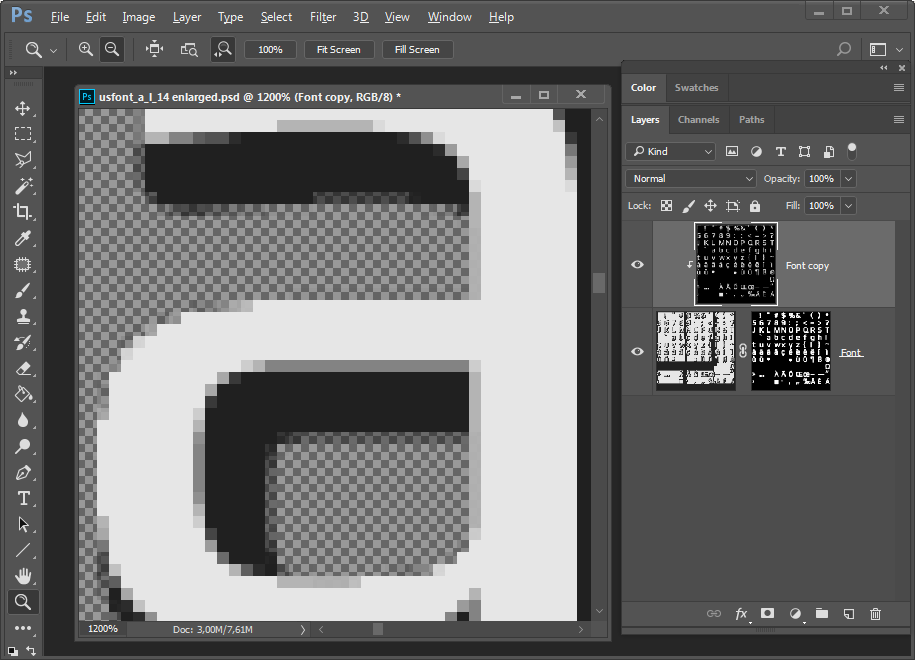
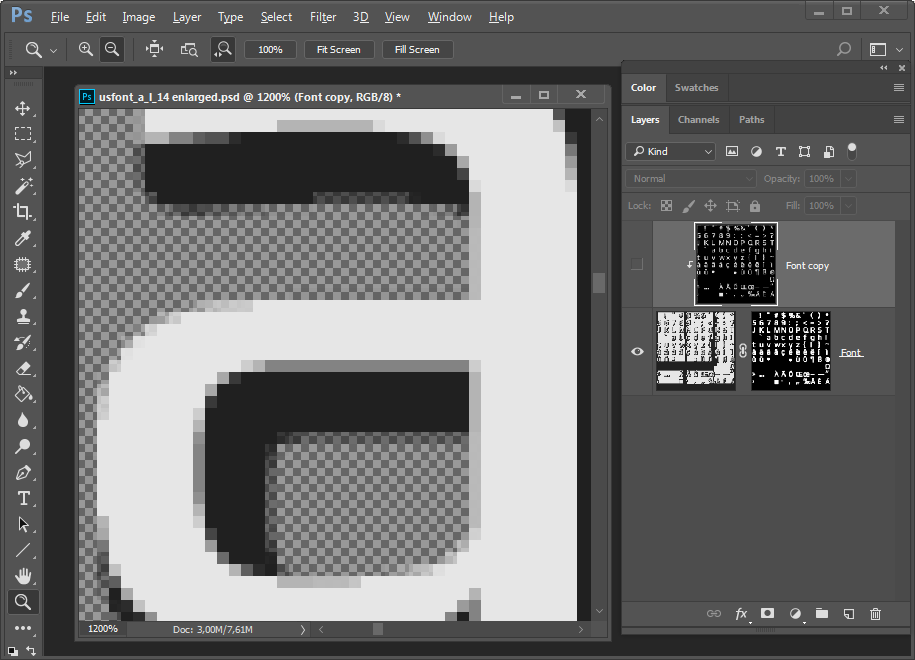
If I open my completed font sheets in PS (png format), they look identical. Letter "a" enlarged:
First one - "Font color", the second - "Color Overlay" (I used blue background):


SDiAI4H.png
MettGIo.png


So no light parts on the shadow. Those two font sheets looks the same, but the game shows it different... Why is that? Anyone knows?
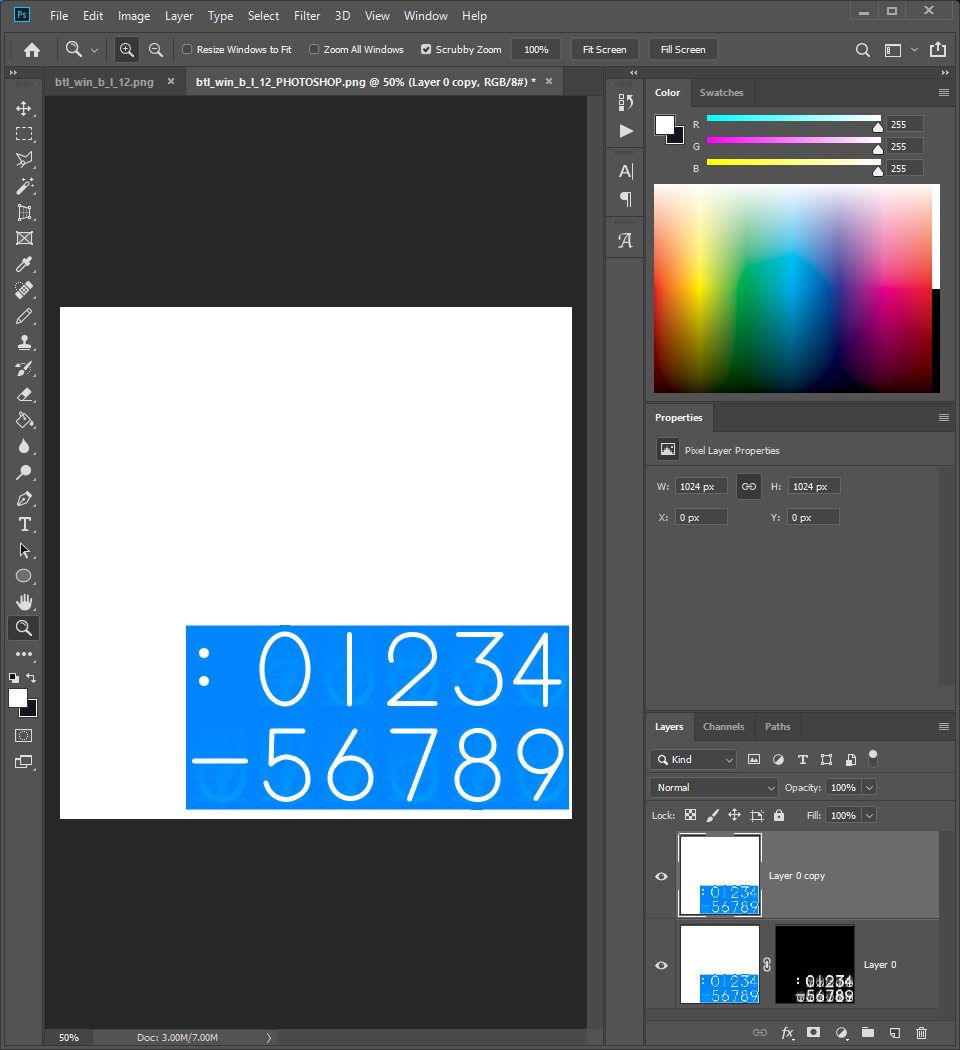
 
Had the same issue while creating my Remake theme with Photoshop.

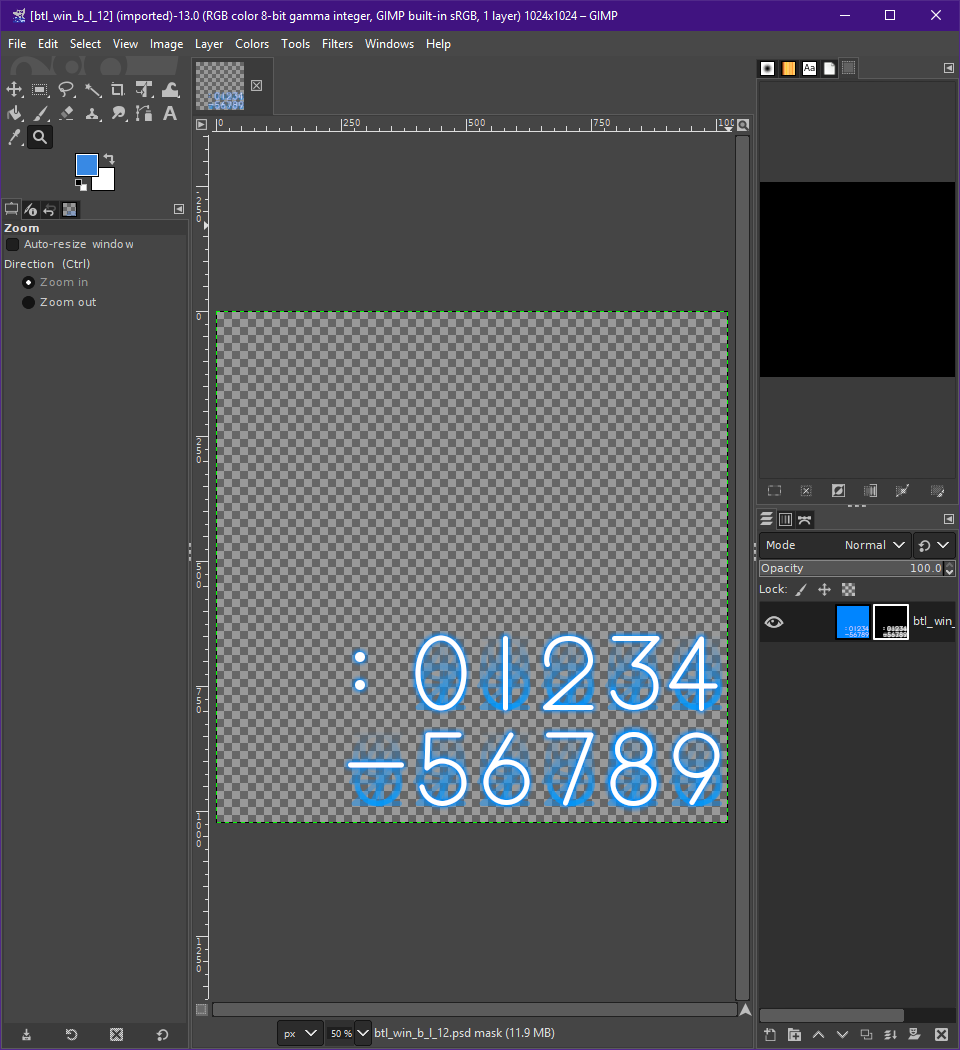
For whatever reason, Photoshop is saving our transparent PNGs with a white background "underneath" the transparency. If you were to open your created image in Photoshop, got to Layer > Layer Mask > From Transparency, then delete the transparency, you'll see that your base image now has a bunch of white around it. Nothing I have tried, no alternate method of saving PNGs (For Web etc) has allowed Photoshop to keep color information for transparent pixels.
tWHYppU.png


I ended up opening these PSDs in GIMP to export to PNG with that information kept intact. The problem with that is that GIMP does not know how to parse Photoshop layer effects like Color Overlay.
JM9GsIm.png


So you have to reduce your images to a single layer PSD with an image mask in order for GIMP to read and export it correctly.
ebZpYnP.png


If anyone at all can tell me how to get Photoshop to do this natively so I can skip this extra step, I would greatly appreciate it.
 
For whatever reason, Photoshop is saving our transparent PNGs with a white background "underneath" the transparency. If you
Thank you very much for the info! Now I get it - when I use Color Overlay (even ONLY for the layers with text), Photoshop "color overlays" everything, and that "white background "underneath" the transparency" you mentioned too!
And thanks for your workaround method!
I'll look for some methods in Photoshop.

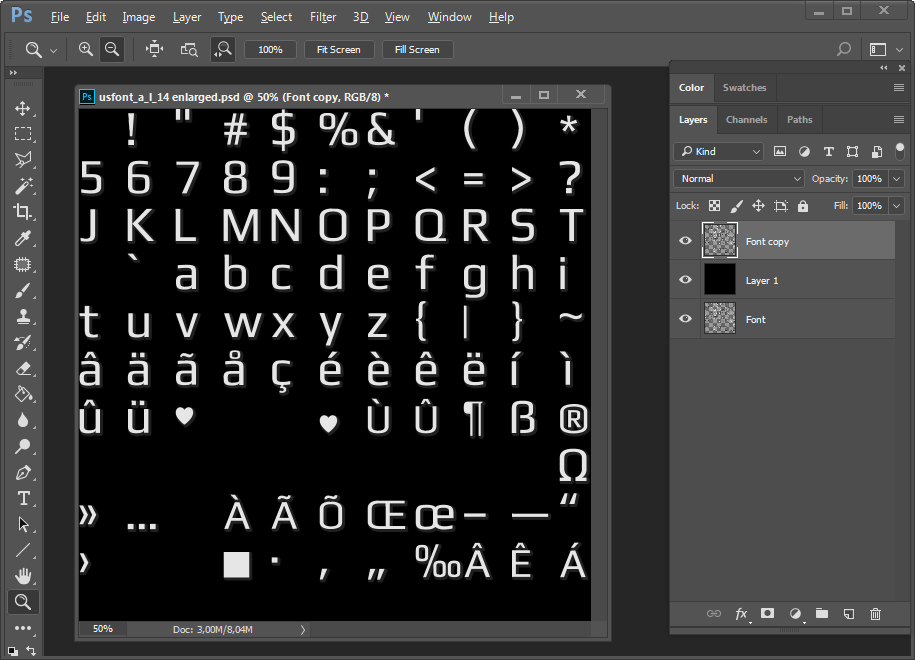
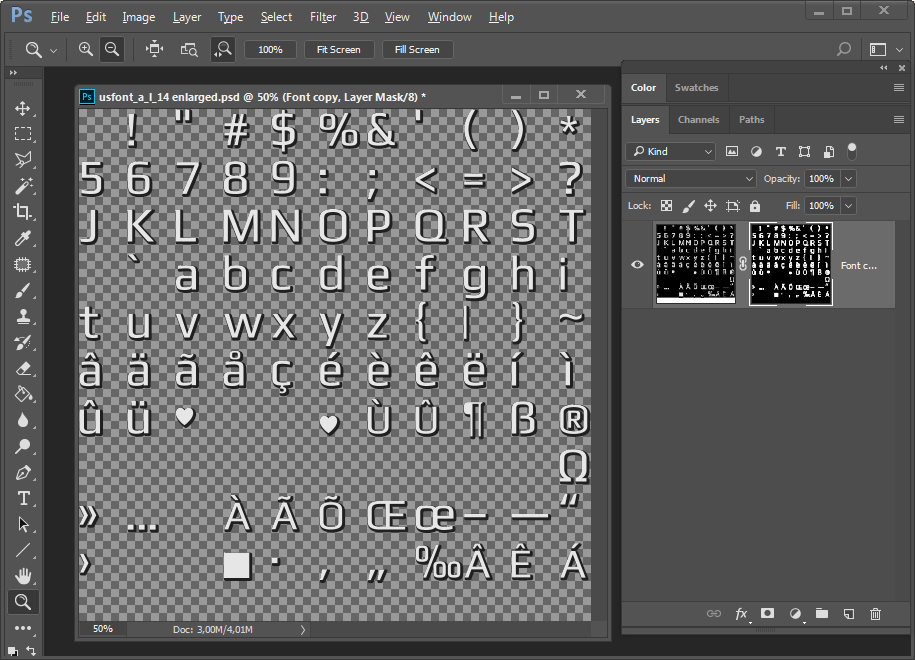
One method is... Get the final result of your work (or open png). Dublicate the layer. Then create solid black layer beneath.
yYRWjgU.png


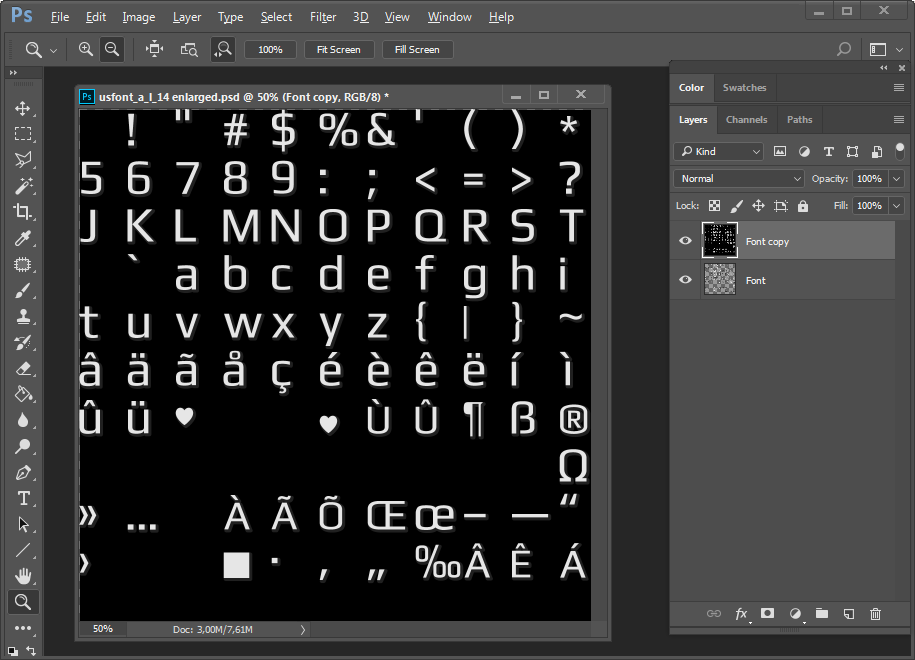
Now Select one of your layers and black layer (balck layer should be at the bottom). Merge them (Ctrl+E). Make sure that merged layer is above.
XV5aP9K.png


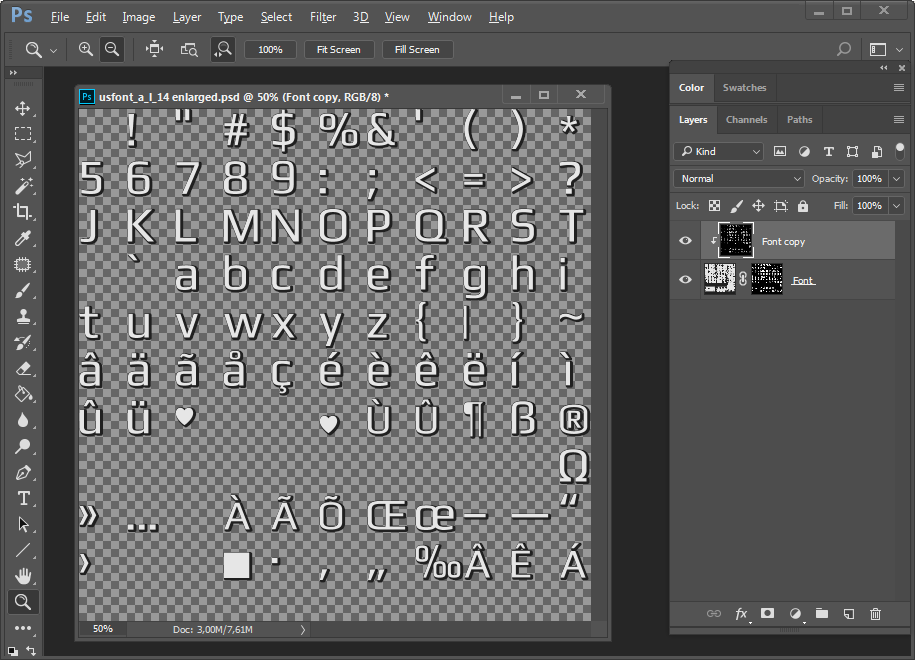
Now with selected merged layer hold down Alt button and move mouse down to your font layer (to the border between these two layers), and when new cursor will appear (a square with an arrow) click left mouse.
And do that "Mask from Transparency" thing with your original font layer (Layer > Layer Mask > From Transparency). You'll get new font sheet.
pKEnRRj.png


If you wish you can merge it too and check - you now have a black color "underneathe" the transparency.
l5VDMaH.png


The downside of this method, that you font will be a little but cut, shrinked. See the left up part of "a"

neqm63S.png

Y3JQnuS.png

 
Need another method, I think...
 
Found another method. (Sorry for double post, can't sdit my posts yet)

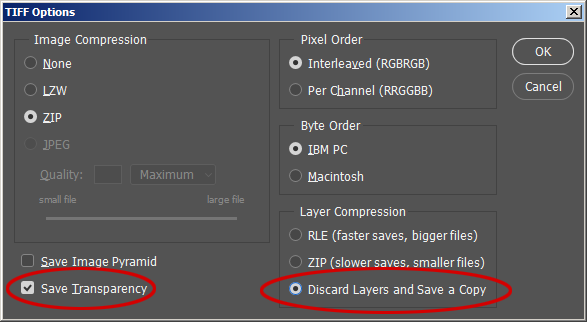
Save your result (or png) to TIFF in Photoshop. Settings window will pop up. It's important to check these settings:
1) Save Transparency
2) Discard Layers and Save a Copy
iTddplg.png


Then Open that TIFF in Photoshop and save it to PNG. You will have black background "underneath" the transparency.
Done. )
 
Had the same issue while creating my Remake theme with Photoshop.

For whatever reason, Photoshop is saving our transparent PNGs with a white background "underneath" the transparency. 

I ended up opening these PSDs in GIMP to export to PNG with that information kept intact.

If anyone at all can tell me how to get Photoshop to do this natively so I can skip this extra step, I would greatly appreciate it.
This is definitely a thing. Photoshop doesn't "do" transparency all that well... We used to go through the exact same thing when making skin mods for Darkest Dungeon. You'd end up with big white splotches in game where there should be transparency .. It was as easy as exporting the .png from Photoshop, open the same .png in GIMP and export it again from GIMP with the transparency turned on (or something like that). You actually didn't have to do any editing in GIMP. Just use it for exporting... I don't know if that same process would work here though.
 
yeah add a transparency layer as background, save it as RGBA in gimp.
 
Please, help. Another problem. Adapting font for menu. I get some artifacts and can't understand where it came from? Which symbols do this?
zkthroa.png


Look words "Status" (above "a"), "Config" (under "g"), "Save" (above "v"). But there are a lot of that symbols in other words, and they are ok. For example"a" in "Status". Where that artifact came from? it is not from "a" - other "a"s are OK, and it is not from neighbor "t", cause other "t"s are ok. So where from? Transparency is OK also, I checked it.

Here is my reduced font-sheet with grid 96x96 pixels. And every letter is in it's own square, nothing is out of its borders (except shadow of "g")

RQoJHoq.png


And one more thing, If I change the height of my font and reduce it - everything is fine - no artifacts
 
Last edited:
Hi Panteleimon, I'm working on a same project as of now and haven't encountered those issues. Are you sure there's absolutely no layers at all on the artifacts spots? Is the other usfont file done? For example for the letter "a" it may be that the bottom right of the letter "q" area is filled with another character shadow. It has to be pixel perfect, even a 10% shadow transparency can produce artifacts.

One solution is to delete one entire row at a time (then character) to spot the unmatching character producing the artifact.
 
Hi, Aavock. Thank you. Found it. That artifact is from big "S". There is a few pixels of the upper left part of big "T" in it. I should have noticed it earlier :(
 
Is there any way to download this? Great job, by the way! Your font is the one that kinda fits the original, more or less.
 
Last edited:
Is there any way to download this? Great job, by the way! Your font is the one that kinda fits the original, more or less.
Thanks. No, I didn't upload it yet. And I didn't complete it yet (I need to complete Menu font and numerals). I'll let you know when It will be completed.
 
Thanks. No, I didn't upload it yet. And I didn't complete it yet (I need to complete Menu font and numerals). I'll let you know when It will be completed.
Great! Thanks a lot, and nice work, hope to see it soon. Also, will the font have included PS and XBOX buttons?
 
At the moment it has PS buttons. It can be done with XBOX ones though.
XBOX buttons would be great! Of course, that is up your decision though. It's just that for PC version i think XBOX buttons would be more appropriate.

Also, i've been trying to modify some of the original Reunion usfont files, so what i did is, extract the font textures, modify the pngs i got from textures, and then place them into textures folder (the one where pngs should be, not the tex files), the textures work correctly, but the result i get is this, even with unmodified textures, just extracted ones: http://www.mediafire.com/view/lpgrsdy0le4pwsz/FF7_EN 2020-04-28 12-46-38-00.bmp

Is this a transparency issue, or am i missing something?
 
Last edited:
XBOX buttons would be great! Of course, that is up your decision though. It's just that for PC version i think XBOX buttons would be more appropriate.

Also, i've been trying to modify some of the original Reunion usfont files, so what i did is, extract the font textures, modify the pngs i got from textures, and then place them into textures folder (the one where pngs should be, not the tex files), the textures work correctly, but the result i get is this, even with unmodified textures, just extracted ones: http://www.mediafire.com/view/lpgrsdy0le4pwsz/FF7_EN 2020-04-28 12-46-38-00.bmp

Is this a transparency issue, or am i missing something?
Not sure why, but I think Reunion suggests to use 1024x1024 font-sheets.
Original sheets are 256x256. I tried to use original ones too and got the same issue. My suggestion is to enlarge original font-sheets to 1024x1024
 
It looks like a similiar problem to your font too. Sadly, this didn't help either. I with this problem for almost a week now, and it is very frustrating that some of the textures work with no issues, while mostly the font PNGs show such artifacts. What i did was modify those pngs with xbox buttons, though, again like i said before, modified or not, you always get same results, which is very frustrating. By default they were 256x, yes. But trying to resize them now, seems like it made the issue even worse.

u7i6brjei4ns1n3zg.jpg


v16xe02bfiq6wsuzg.jpg
 
Last edited:
Yes, it seems like my problem and it is. You should resize to 1024x1024, then use my method above (save as .tiff without layer then save tiff as png). Or. When resizing use Nearest Neighbor resample.
Why it doesn't like 256x256 - I don't know.
 
I had these issues when creating my ff8 font, the best way to avoid artifacts is use nearest neighbor upscaling on the original font files, then use the ruler guide in photoshop to know the pixel limitations, any transparent pixels outside those lines will show up as artifacts in most cases.
 
Last edited:
Does anybody know tools to extract some textures correct?
I tried TexTool, Image2Tex, Reunion, Aali, FFnx possibilities to extract textures - all of them return corrupted colors for some textures.
For example coloa.tex looks like this:
X2zr8O5.png


Please, help.
 
They're actually not corrupted, those are the actual colors. The explanation for this has something to do with the way PSX used palette information to display certain colors, I think it was done to save on memory or something similar.

If anyone who can explain it better than I can wants to chime in, please do!
 
Status
Not open for further replies.
Back
Top