Hey thanks !
To properly display the japanese test, go in the File->Preferences menu and select Japanese as the game's alphabet.
The font is in the Environment->Text panel. Check out the "Charmap" section, you'll see several pictures : the global text font is the first one.
Here is the method to import your own font (I should add it in the help but I always forget ><) :
1st step : create an image .tga with every letters and characters you want. That's tedious if you paint it but Gimp and other programs have options to paint characters. Best way to draw them : they must be 13 pixels high maximum, 3, 6, 9, 12 or 15 pixels large, being white on a black background and having ~ 6 different tones of grey. It's also better if you use the same dimensions than in the game, so it's better to export the font before and use it as the base image.
2nd step : open HadesWorkshop.conf with a simple text editor and add a new line in the [Text] section :
Charmap[YourLanguageHere]=
and then you put all the letters one by one. They should be in the same order than in your image (that makes things easier). Since you don't draw the space, you can put it anywhere (it's in 16th position in normal games but that's only a standart). You're limited to 247 characters for the first charmap. If you need more, add a second line "Charmap[YourLangageHere][A]=" and put up to 256 more characters in that line. You can do it once again with a "B" option so you can use up to 759 characters.
3rd step : open Hades Workshop and your game, go to the charmap image (Environment -> Texts -> Charmap) and select the first picture : you see the current charmap. Click on "Manage Textures" then "Browse", select your charmap image, adjust its scale/position and then click on "Import" : you see the characters as they will appear in-game. Because of the way FFIX compresses it, it'll look bad if your letters are not 3, 6, etc... pixels-large.
4th step : in the same screen, select all the paintings one by one and make them surround each a letter. The order here must be the same as the one in the .conf file (let a 0-large painting for the space). You can delete or add paintings with a right-click.
5th step : go to preferences and select your charmap in the field "Game alphabet".
6th step : translate everything you can ^^'
Note that the Japanese version actually uses an extended charmap that is dependant on where the player is located. The font picture for it can be managed the same way, but there is no support for displaying/editing characters from that charmap inside the dialogs...

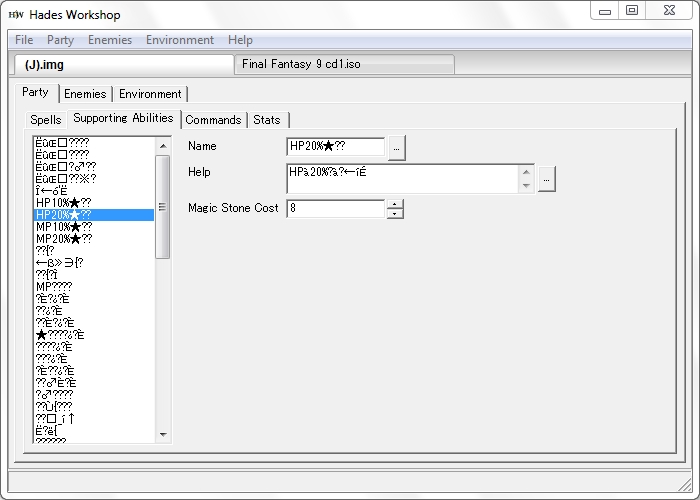
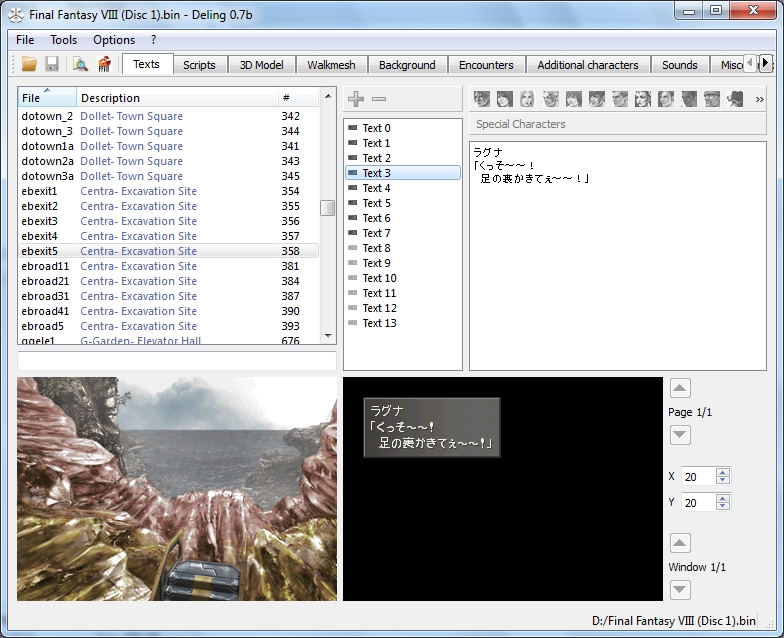

 ), edited the charmap file, (deleted a char that I don't need, copied the normal upper case version and the accent from the lower- case version to make Ő and Ű) and the config file, and now it works perfectly.